

Till discounts
How to create a discount the cashier applies with one button, and its conditions.
The discounts created here appear as buttons next to the amount at the till. For each you set how much, for whom, when and on what conditions.
Open Till discounts.
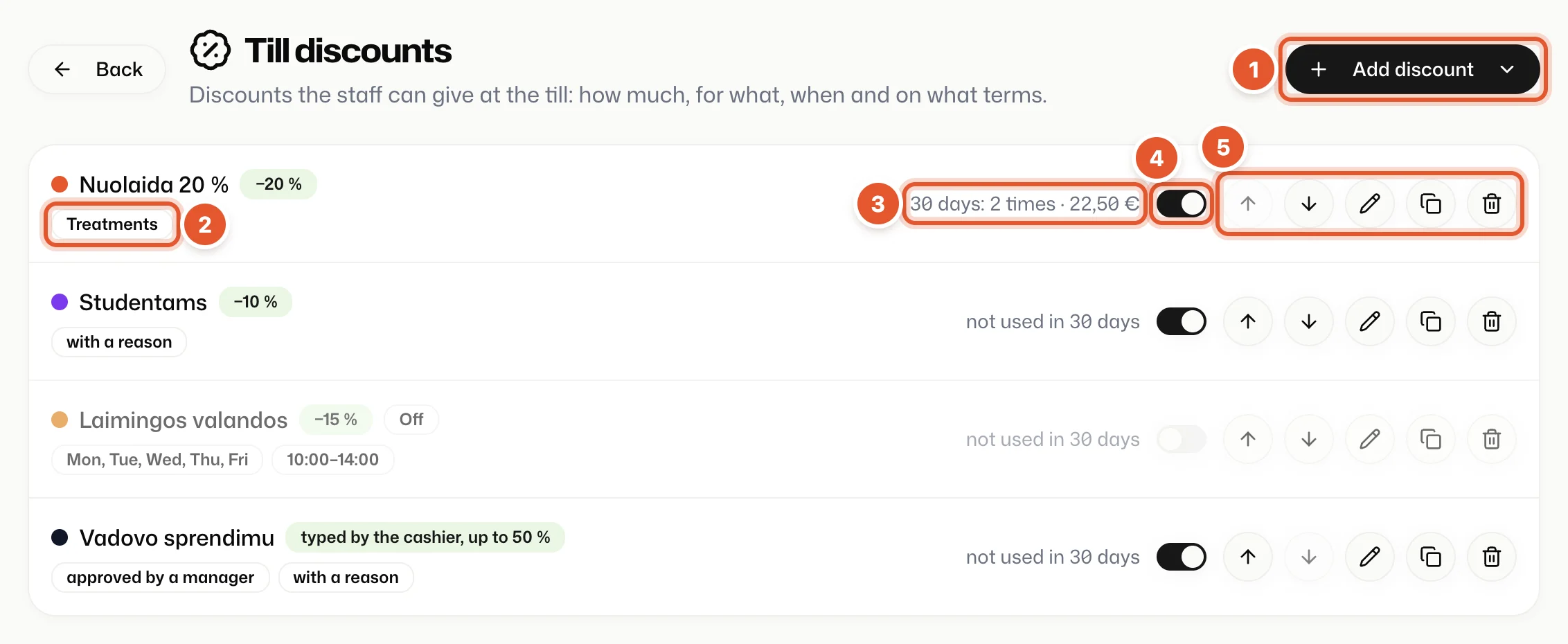
- 1. Add discount — a new discount or an example.
- 2. Conditions — for whom, when and how it applies.
- 3. Usage — how many times and how much in 30 days.
- 4. On — a disabled one does not show at the till.
- 5. Actions — order at the till, edit, copy, delete.
Create a discount
Press Add discount and choose an example or Empty discount.
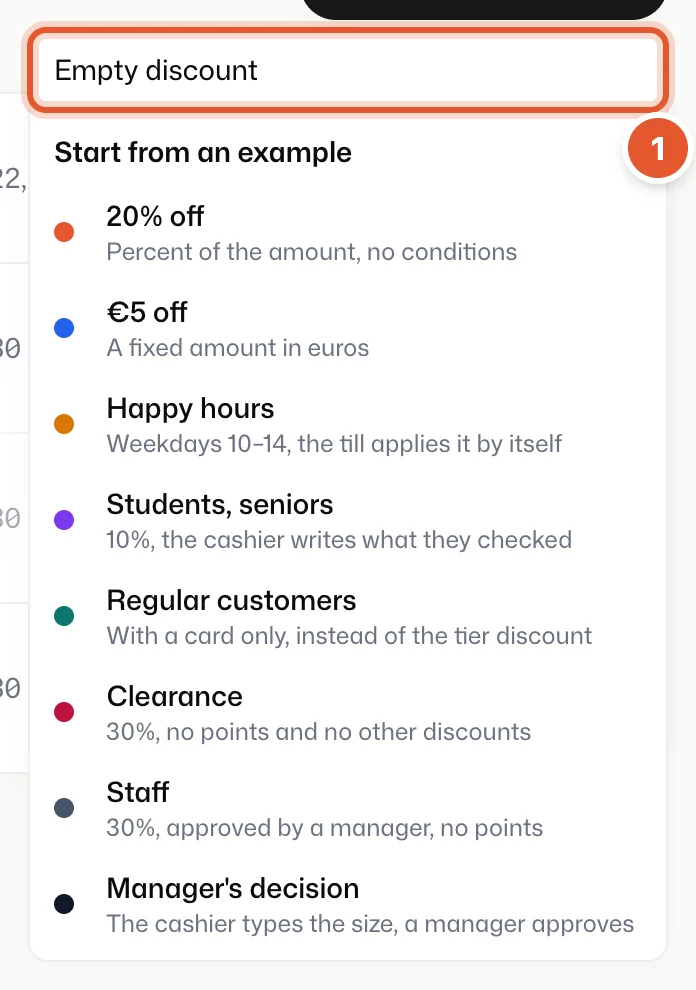
- 1. Empty discount — start from nothing.
Type the name and the size. Everything else only if the discount needs conditions.
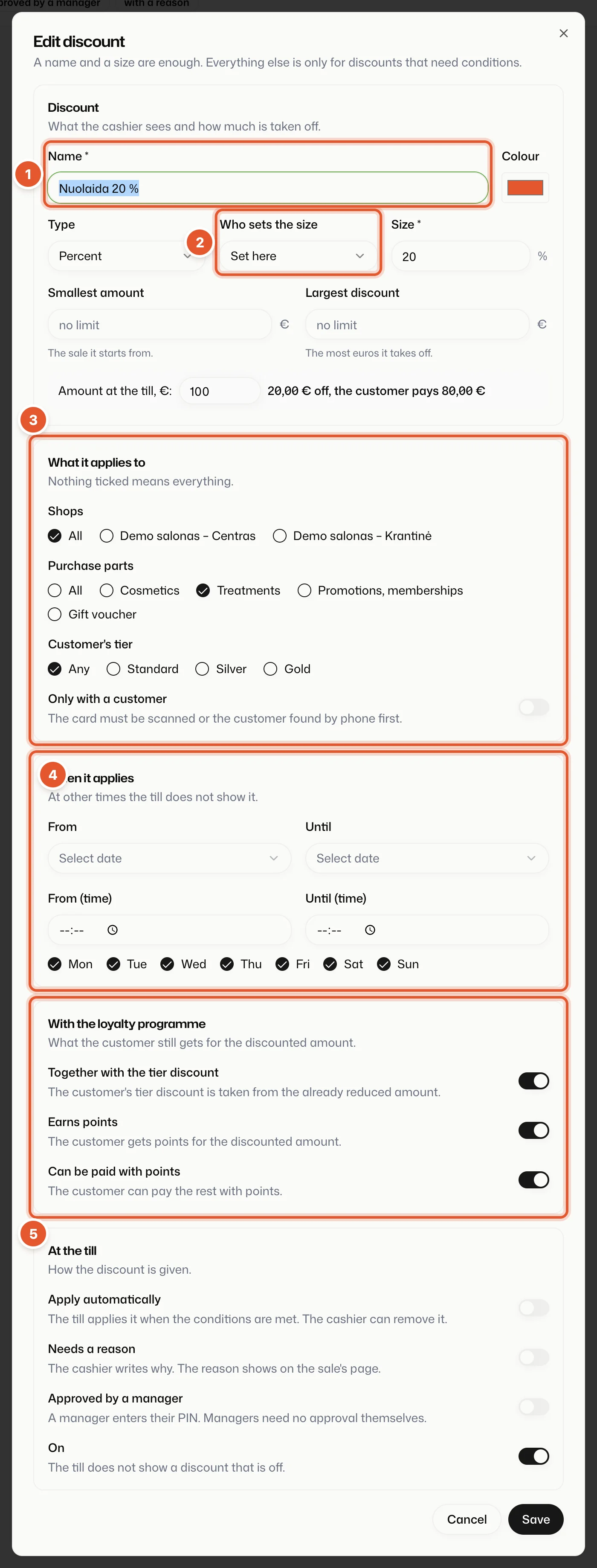
- 1. Name — the label of the button at the till.
- 2. Who sets the size — set here or entered by the cashier.
- 3. What it applies to — shops, parts, tiers.
- 4. When it applies — dates, days, hours.
- 5. With the loyalty programme — whether together with the tier and points.
Press Save. At the till the discount appears after refreshing.
Conditions
| Section | What you set |
|---|---|
| Discount | Percent or euros. You set the size here, or let the cashier enter it up to a limit. |
| Applies to | Shops, purchase parts, customer tier. Nothing ticked – applies to all. |
| When valid | Dates, weekdays, hours. At other times the discount does not show at the till. |
| Combining with the loyalty programme | Whether the tier discount also applies, points are earned, points can pay. |
| At the till | Whether it applies by itself, needs a reason or a manager's approval. |
When a manager's PIN is needed
With Approved by a manager ticked, a manager enters their PIN at the till. The reason and the approving person stay on the purchase page.
How much it is used
Next to each discount you see how many times it was applied in 30 days and the total. A discount that is off does not show at the till but stays in the list.
If something goes wrong
| What you see | What to do |
|---|---|
| The discount is not at the till | Check that it is on and the shop, day and hour fit. At the till press the refresh arrow. |
| “Enter both hours: from and until” | The time needs both a start and an end. |
| “The end date is before the start” | Swap the dates. |
Related pages
- Amount and discount – how the cashier applies the discount