

Customer import
How to move an existing customer list and printed cards from Excel.
If you already have a customer list, move it in one go. Your own Excel or CSV file works.
Open Customers and press Import cards.
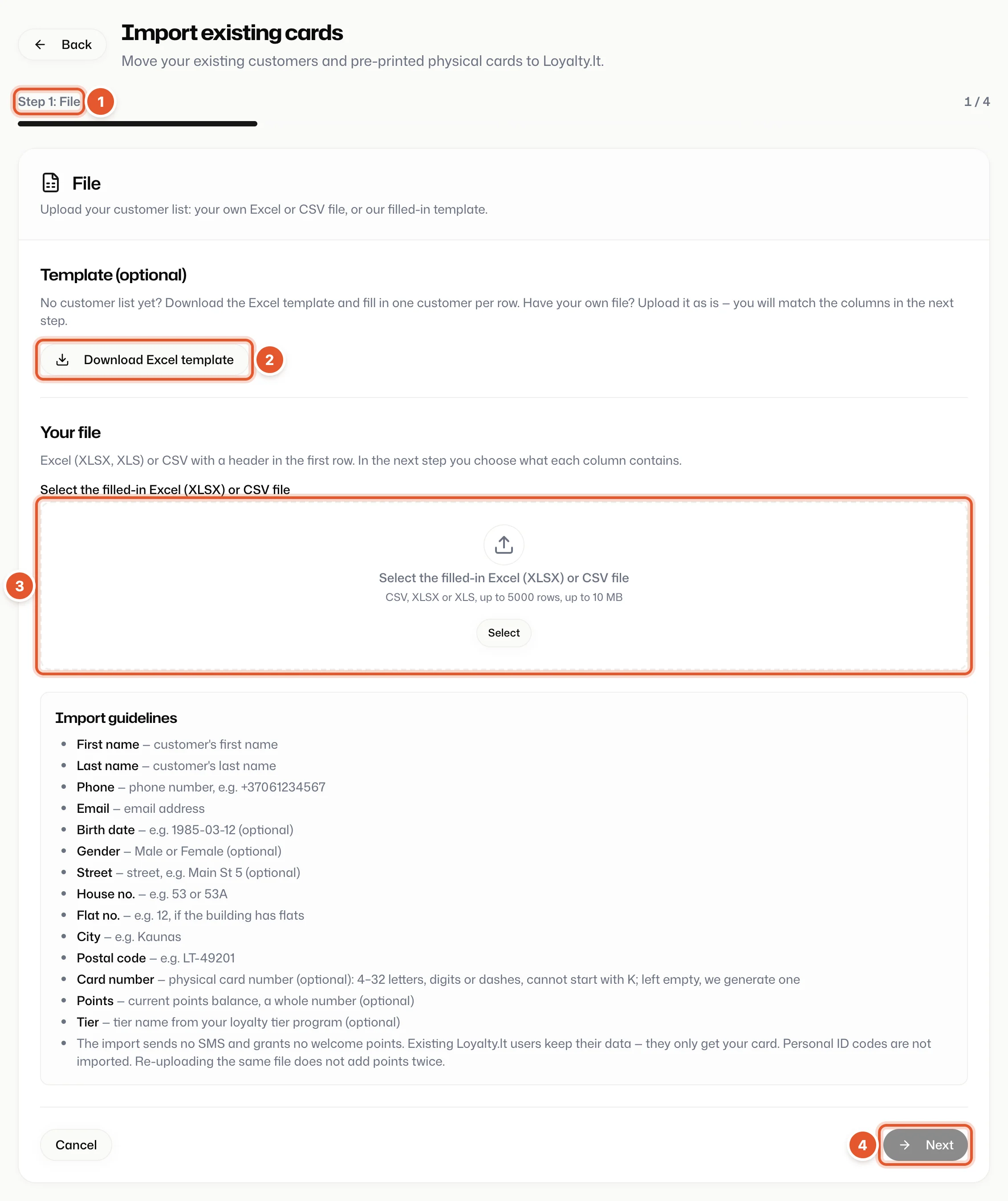
- 1. Steps — 4 in total.
- 2. Download Excel template — if you have no file of your own.
- 3. Your file — Excel or CSV.
- 4. Next — matching the columns.
Nothing is sent to anyone
The import sends no SMS and gives no welcome points. Existing Loyalty.lt users' details do not change – they only get your card.
Import
File. Upload your file. If you have none, press Download Excel template and fill it in: one row – one customer.
Columns. Say what is in each column. Leave unneeded ones as Do not import.
Review. Check what will be saved. Nothing changes until you confirm.
Done. You see how many customers are new, how many were linked to existing ones and how many were skipped.
What the file needs
- A phone or an email – at least one. The phone works best with the country code:
+37061234567. - The card number is optional. If it is missing, we create one.
- Points – a whole number. Uploading the same file again does not add the points twice.
- Up to 5000 rows and 10 MB. More – split into several files.
- We do not import personal identity codes.
If something goes wrong
| What you see | What to do |
|---|---|
| “Assign at least one column to phone or email.” | Choose which column has the contact. |
| “This field is already assigned to another column.” | Keep one column per field. |
| “There are no rows to import. Fix the errors and check the file again.” | Read the note next to each row and fix the file. |