

Push notifications
How to send a notification to customers' phones and what the results show.
A push notification appears on the customer's phone if they have the Loyalty.lt app and allowed notifications.
Open Push NotificationsCampaigns.
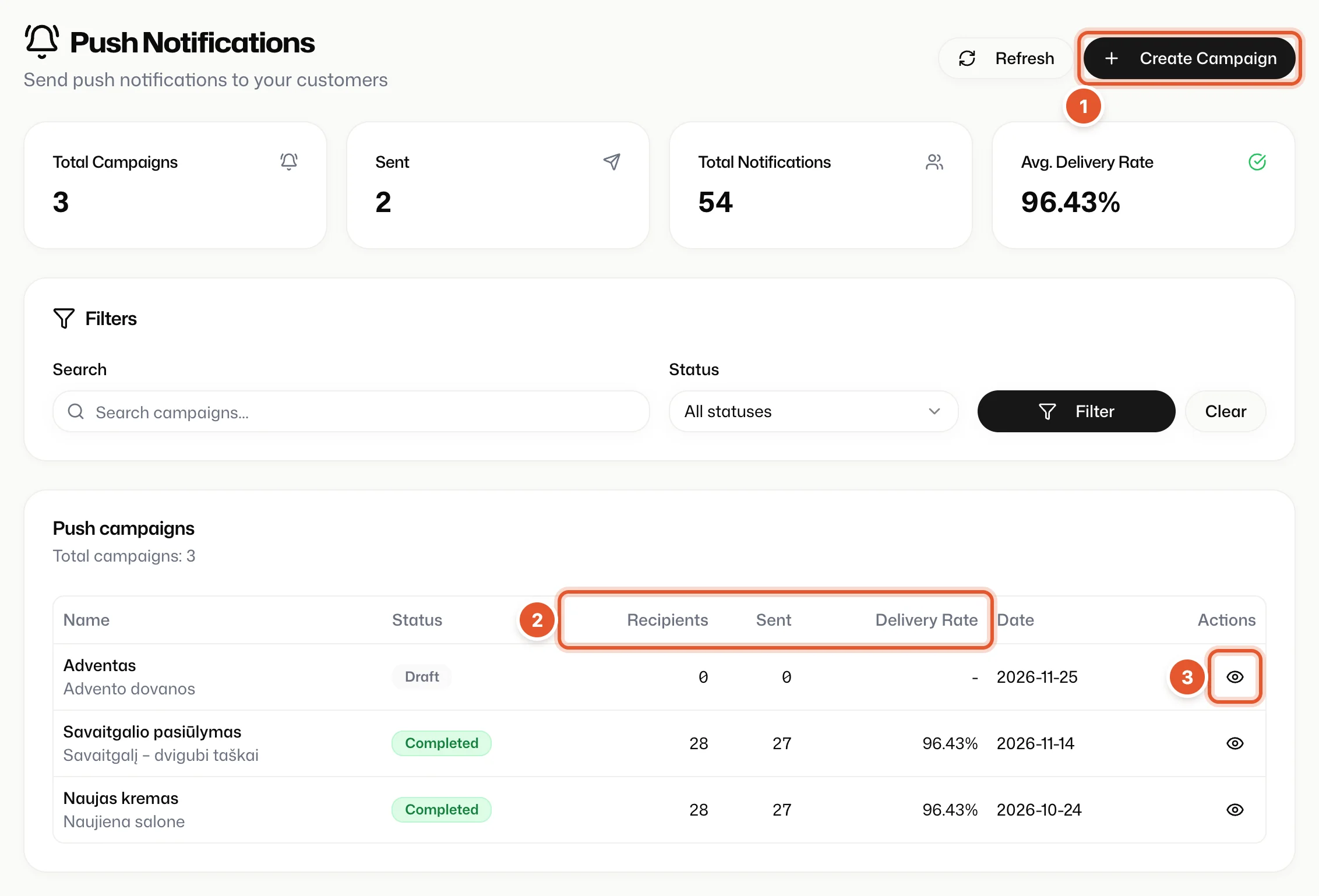
- 1. Create Campaign — a new notification.
- 2. Results — recipients, sent, delivery rate.
- 3. View — the campaign's page.
Send a campaign
A sent notification cannot be recalled
Read the text once more before sending. If unsure, save a draft.
Press Create Campaign and fill in the form.
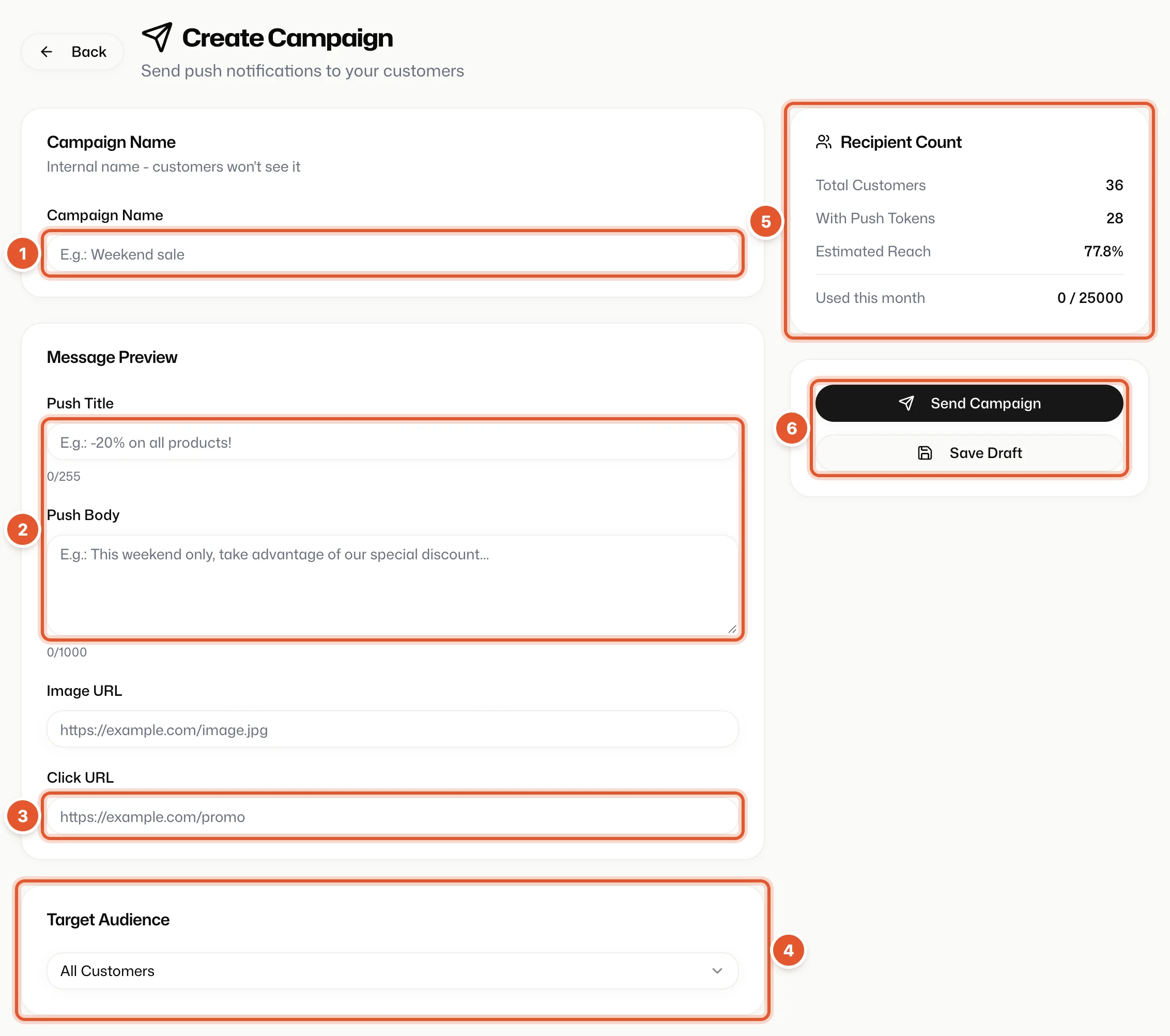
- 1. Campaign name — customers do not see it.
- 2. Title and text — what the customer sees on the phone.
- 3. Click URL — where the customer goes.
- 4. Target audience — who to send to.
- 5. Recipients — how many will get it and how much is left in the plan.
- 6. Send or save — a sent notification cannot be recalled.
Choose who to send to. On the right you see how many customers will get it.
Press Send Campaign.
Results
In the list press the campaign. You see how many recipients there were and how many got it.
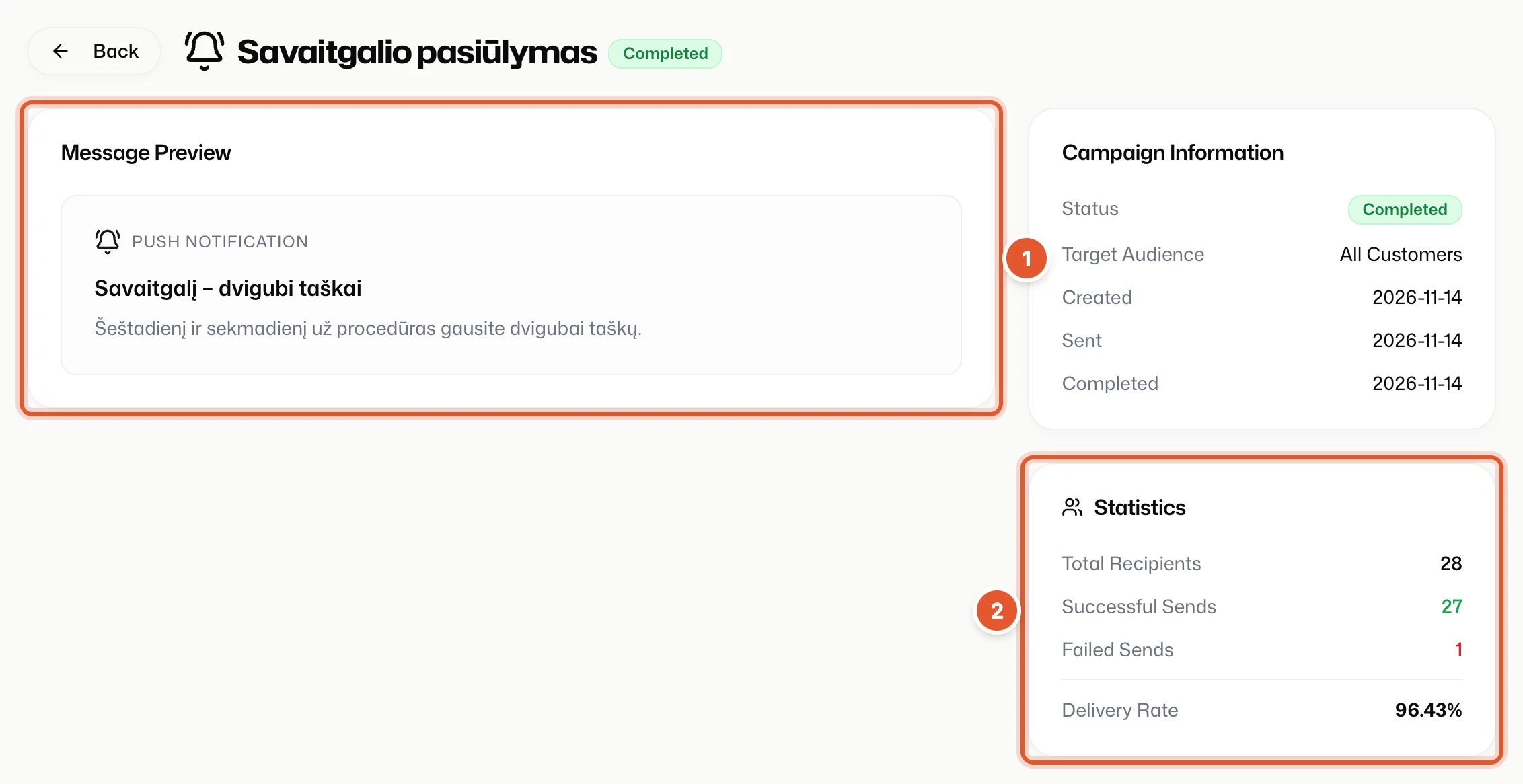
- 1. Notification preview — what the customer got.
- 2. Statistics — recipients, successful and failed sends.
If something goes wrong
| What you see | What to do |
|---|---|
| Fewer recipients than customers | Only those who installed the app and allowed notifications get them. |
| The plan limit is reached | The limit shows next to the recipient count. Wait for next month or change the plan. |