

Push automation
How to make notifications go out by themselves – on a birthday or after a long absence.
A rule sends a notification by itself when a customer meets the condition.
Open Push NotificationsAutomation.
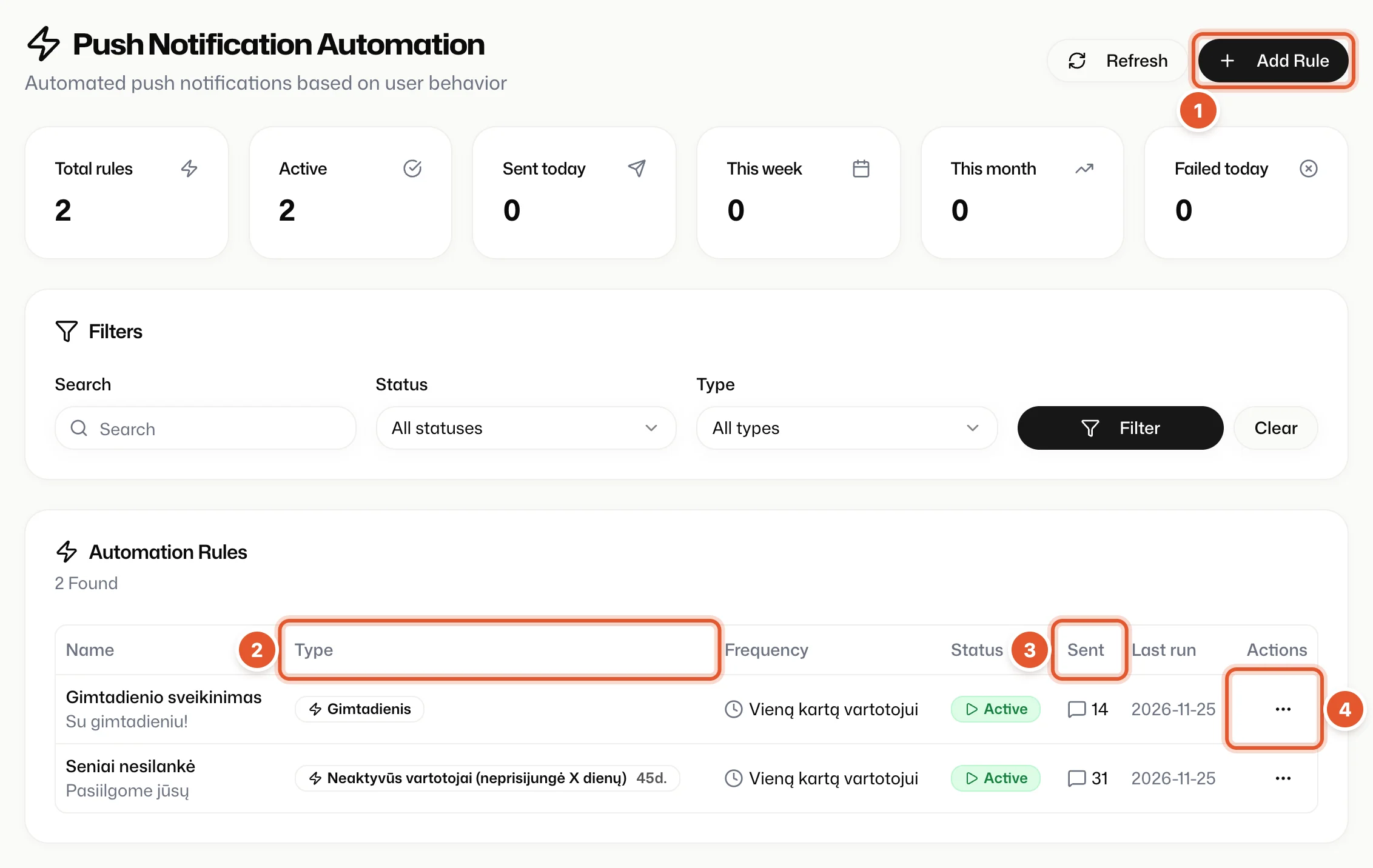
- 1. Add Rule — a new rule.
- 2. Type — when it is sent.
- 3. Sent — how many notifications went out.
- 4. Actions — edit, pause, delete.
Create a rule
Press Add Rule, type the name and the text. AI can suggest the text.
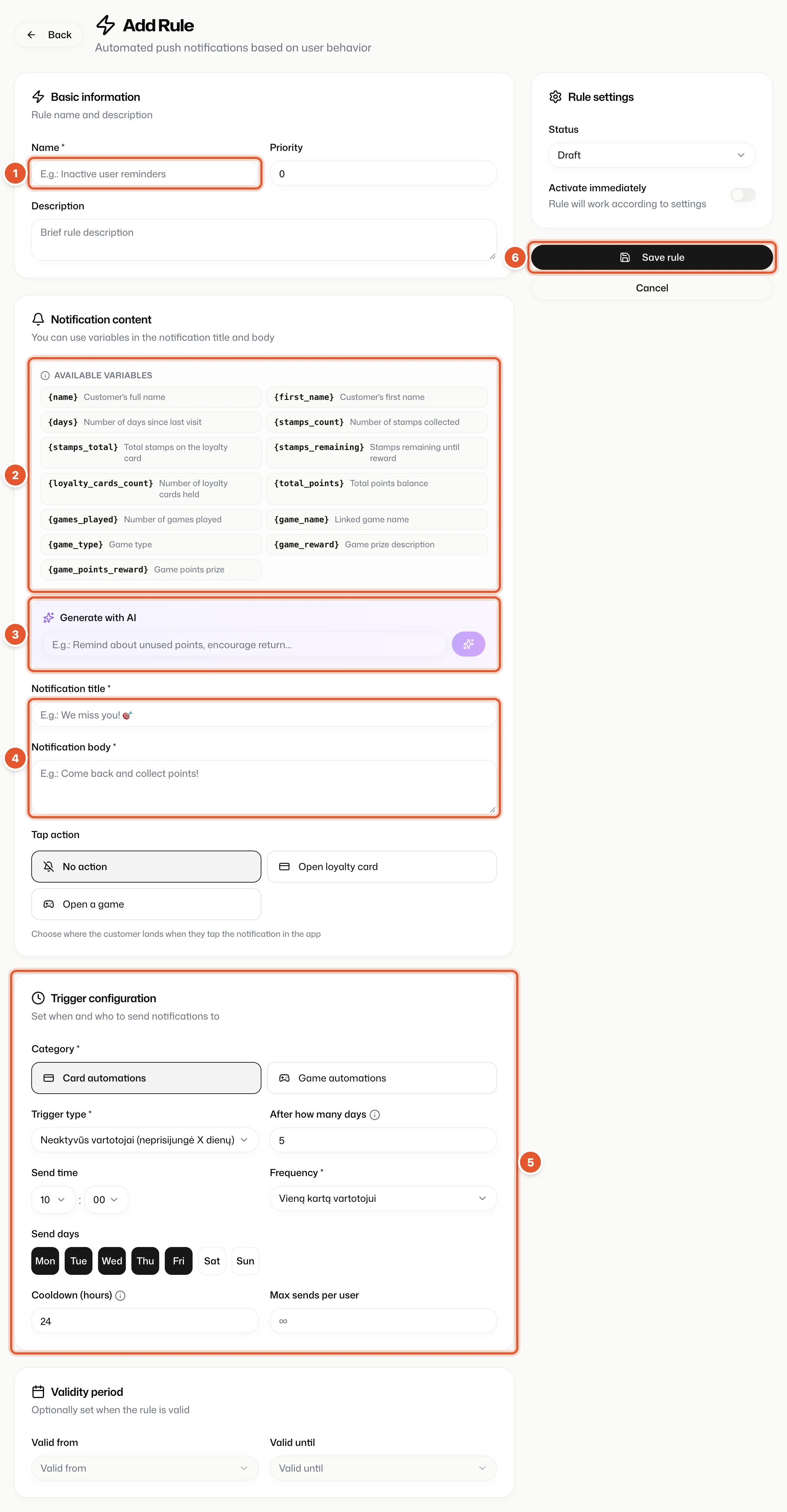
- 1. Name — only you see it.
- 2. Available variables — insert the customer's name, points and more.
- 3. Generate with AI — suggests the text.
- 4. Notification — what the customer gets.
- 5. Trigger setup — when, at what time and how often.
- 6. Save rule — works at once when on.
Choose when to send, for example when a customer has not visited for a number of days.
Set the time, the days and how often for the same person. Press Save rule.
So it does not look like spam
Cooldown (hours) stops sending too often. Max sends per user limits how many times one person gets the same one.
Stop a rule
Open the rule and turn off Activate immediately or change its status.