

Customers
How to find a customer, change their details, tier and consents, and save the list.
Here you see everyone who has your loyalty card.
Open Customers.
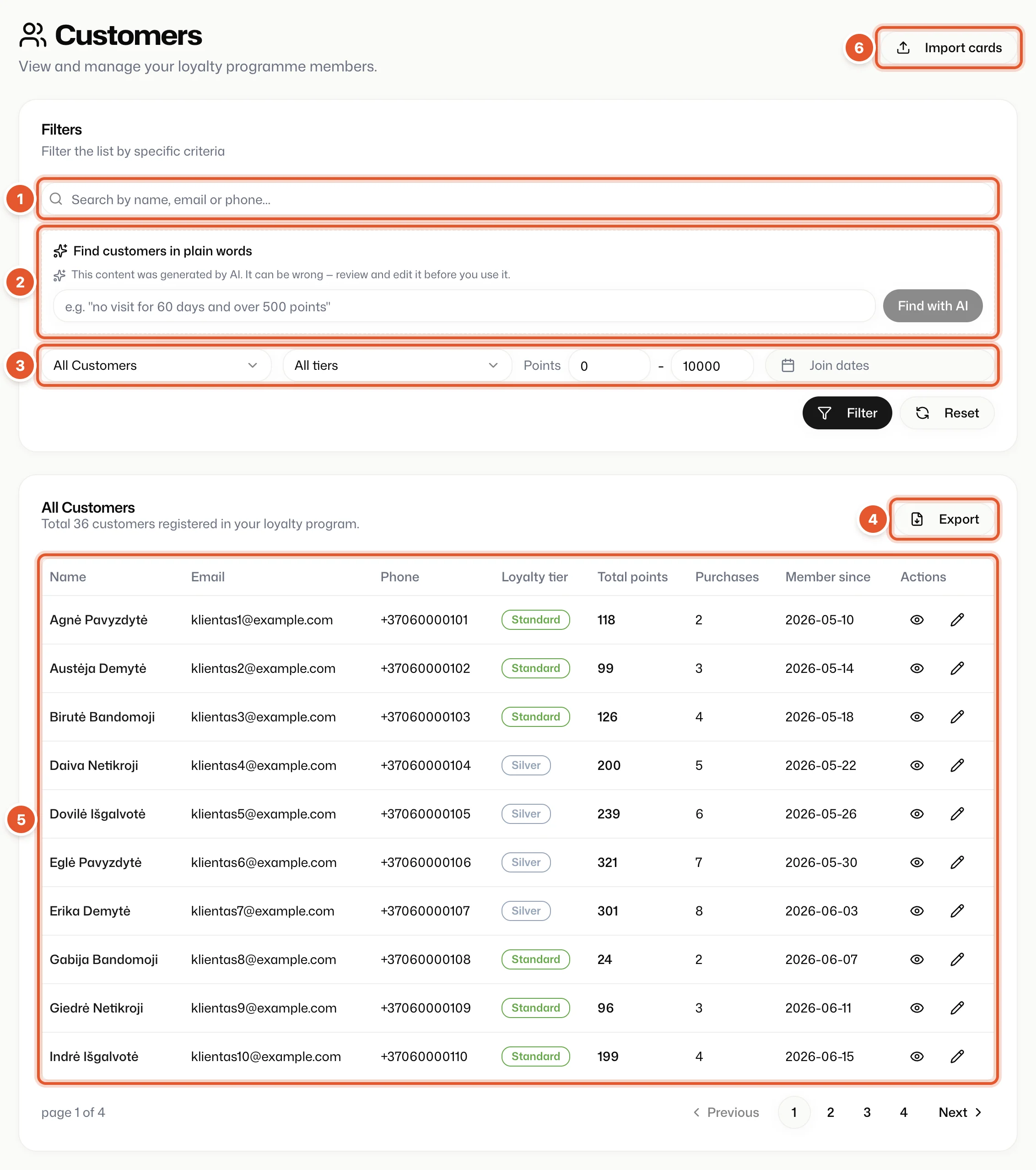
- 1. Search — name, email or phone.
- 2. Find customers in plain words — AI picks the filters from your sentence.
- 3. Filters — card, tier, points, date.
- 4. Export — the list as a CSV or Excel file.
- 5. Customer list — the eye – the customer's page, the pencil – change details.
- 6. Import cards — upload an existing customer list.
Find customers
Search by name, email or phone. Filters narrow the list by tier, points and joining date.
Find customers in plain words lets you write what you are looking for, such as “no visit for 60 days and over 500 points”. AI turns it into filters – check them before using.
Customer page
In the list press the eye.
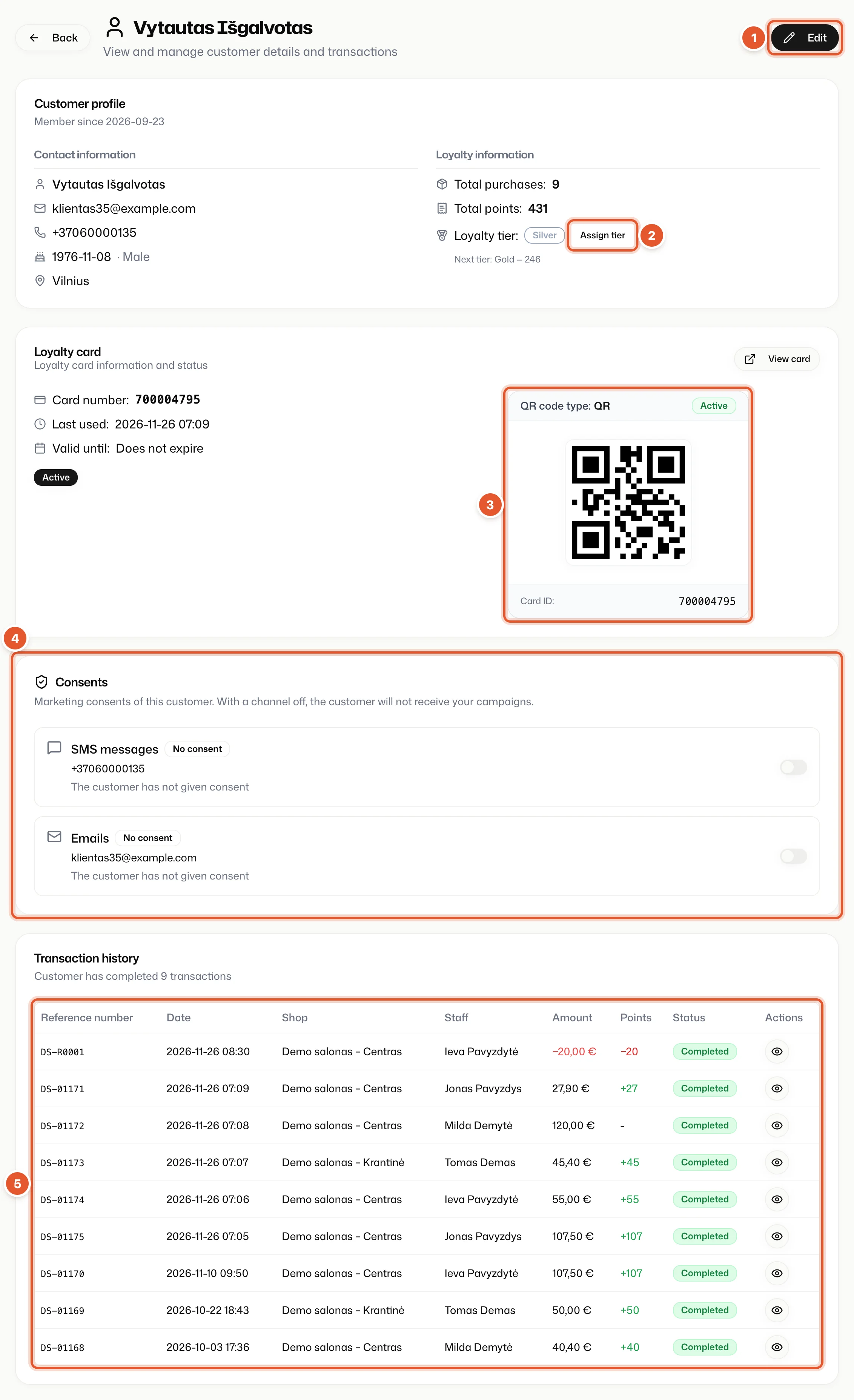
- 1. Edit — change the customer's details.
- 2. Assign tier — a tier by hand.
- 3. QR code — the same one the customer shows at the till.
- 4. Consents — SMS and email.
- 5. Transaction history — all purchases; the eye – the purchase page.
Change a customer's details
Changes the customer's account too
Changes apply to the customer's account and the Loyalty.lt app. Change only what the customer asked for.
Press Edit, change and save.
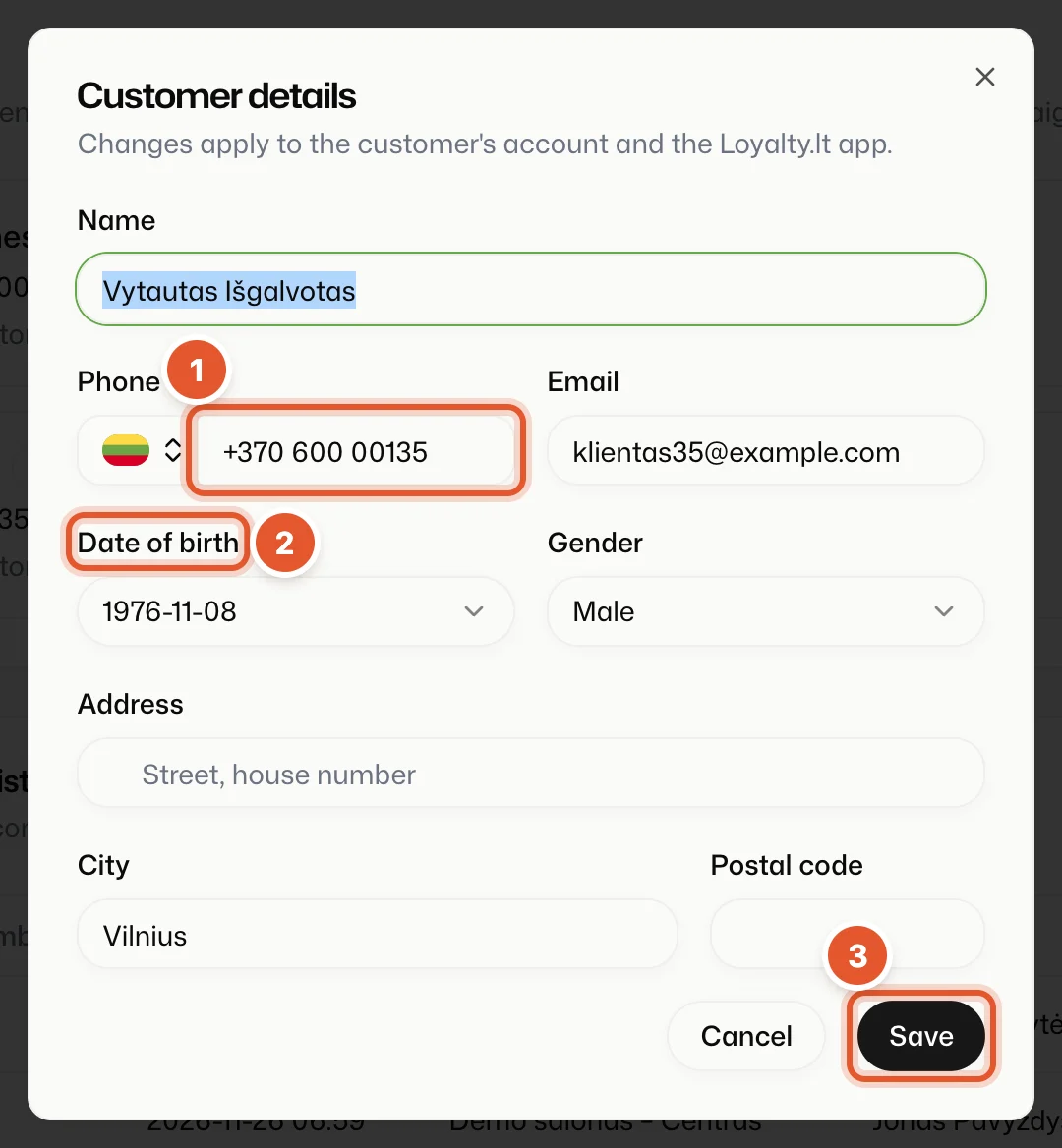
- 1. Phone — the customer signs in to the app with this number.
- 2. Date of birth — needed for birthday gifts.
- 3. Save — applies at once.
The Check contacts badge in the list means the phone number is wrong or there is no contact.
Assign a tier manually
Press Assign tier, choose the tier and, if needed, until when it is valid.
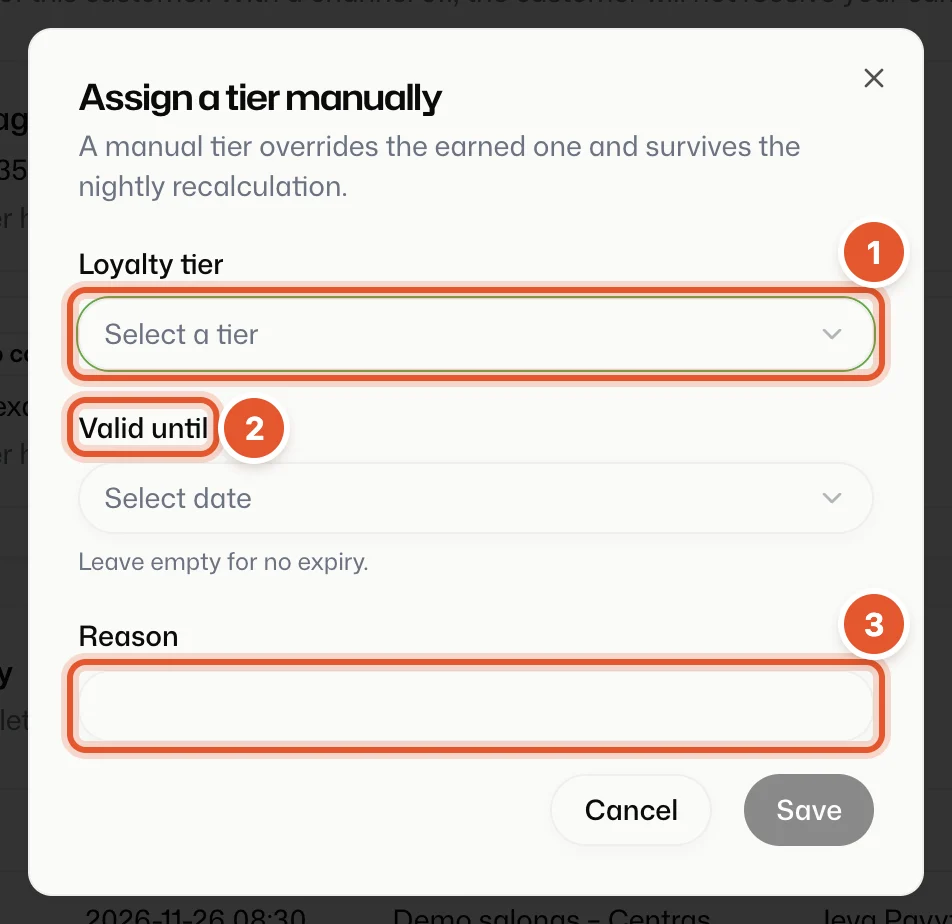
- 1. Loyalty tier — which tier to give.
- 2. Valid until — empty – without limit.
- 3. Reason — a note for you.
A manual tier applies instead of the automatic one. Remove manual assignment cancels it.
Consents
The Consents block shows whether the customer agreed to your SMS and emails. Turning a channel off stops your campaigns to them.
The consent is the customer's
Turn it on only when the customer really agreed. If they opted out themselves, only they can give it back.
Save the list
Press Export and choose CSV or Excel. The customers you see with the current filters are saved.
Personal data
The file has names, phone numbers and email addresses. Keep it safe and delete it when no longer needed.
If something goes wrong
| What you see | What to do |
|---|---|
| The customer is not in the list | They do not have your card yet. Register them at the till. |
| “Withdrawn by the customer – only they can give it again” | Ask the customer to agree in the app. |
| The customer does not see points in the app | They probably signed in with another phone number or email. They must sign in with the number given at the till. |