

Loyalty cards
How to create a card, set up earning and redeeming points, and the card's look.
The card decides how many points a customer gets and what they are worth. The customer sees it in the Loyalty.lt app.
Open Loyalty CardsAll Cards.
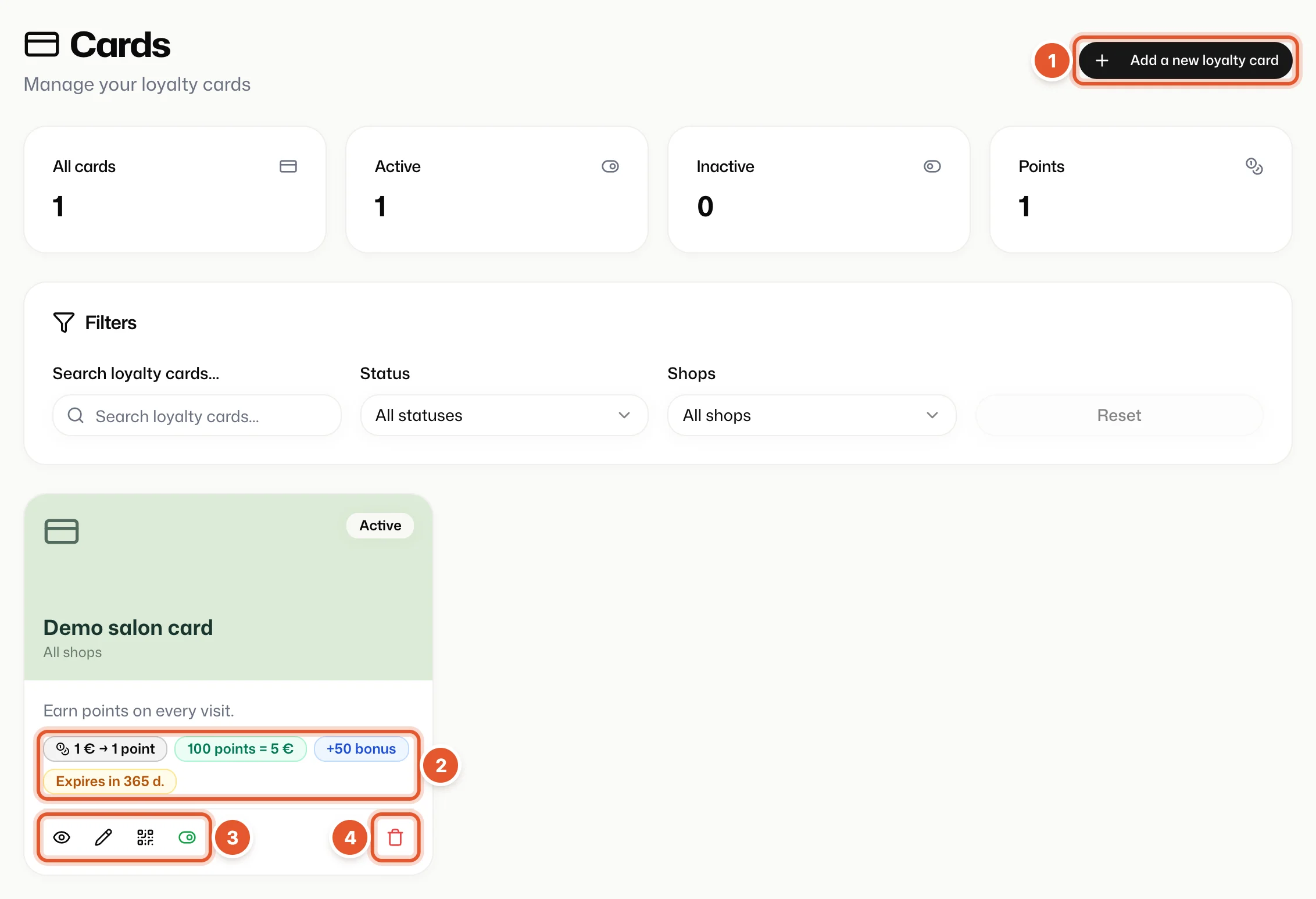
- 1. Add a new loyalty card — a new card.
- 2. Rules — what earns points, what they are worth and how long they last.
- 3. Actions — view, edit, show the QR code, turn off.
- 4. Delete — cannot be undone.
Create a card
Press Add a new loyalty card. The form has 5 tabs; on the right you see at once how the card will look.
General. Type the name in Lithuanian and English. Other languages open under Translations.
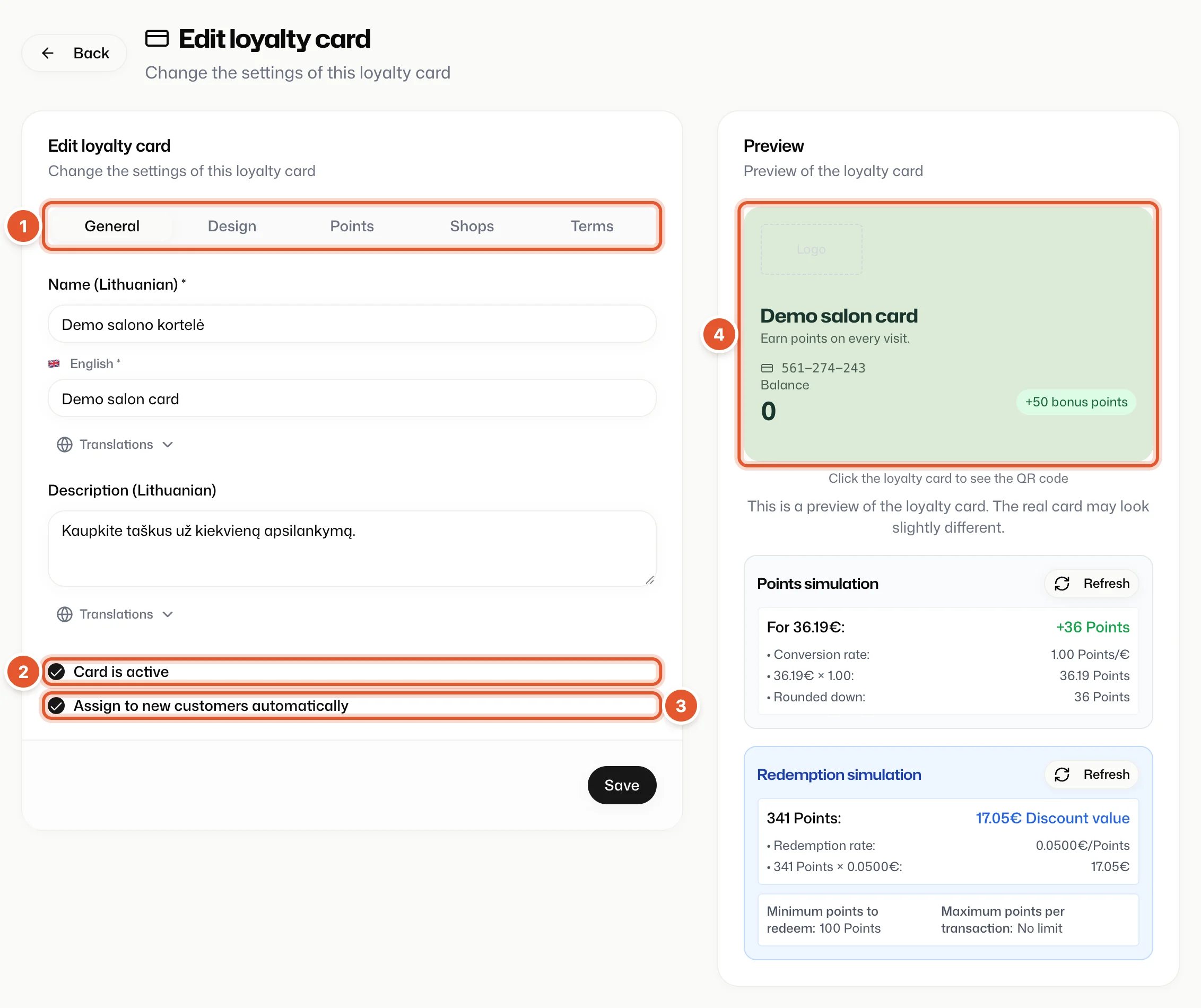
- 1. Tabs — the whole card form.
- 2. Card is active — untick it and the card is not used.
- 3. Assign to new customers automatically — a new customer gets the card by themselves.
- 4. Preview — how the card will look in the app.
Design. Upload a logo or a background picture and choose the colours.
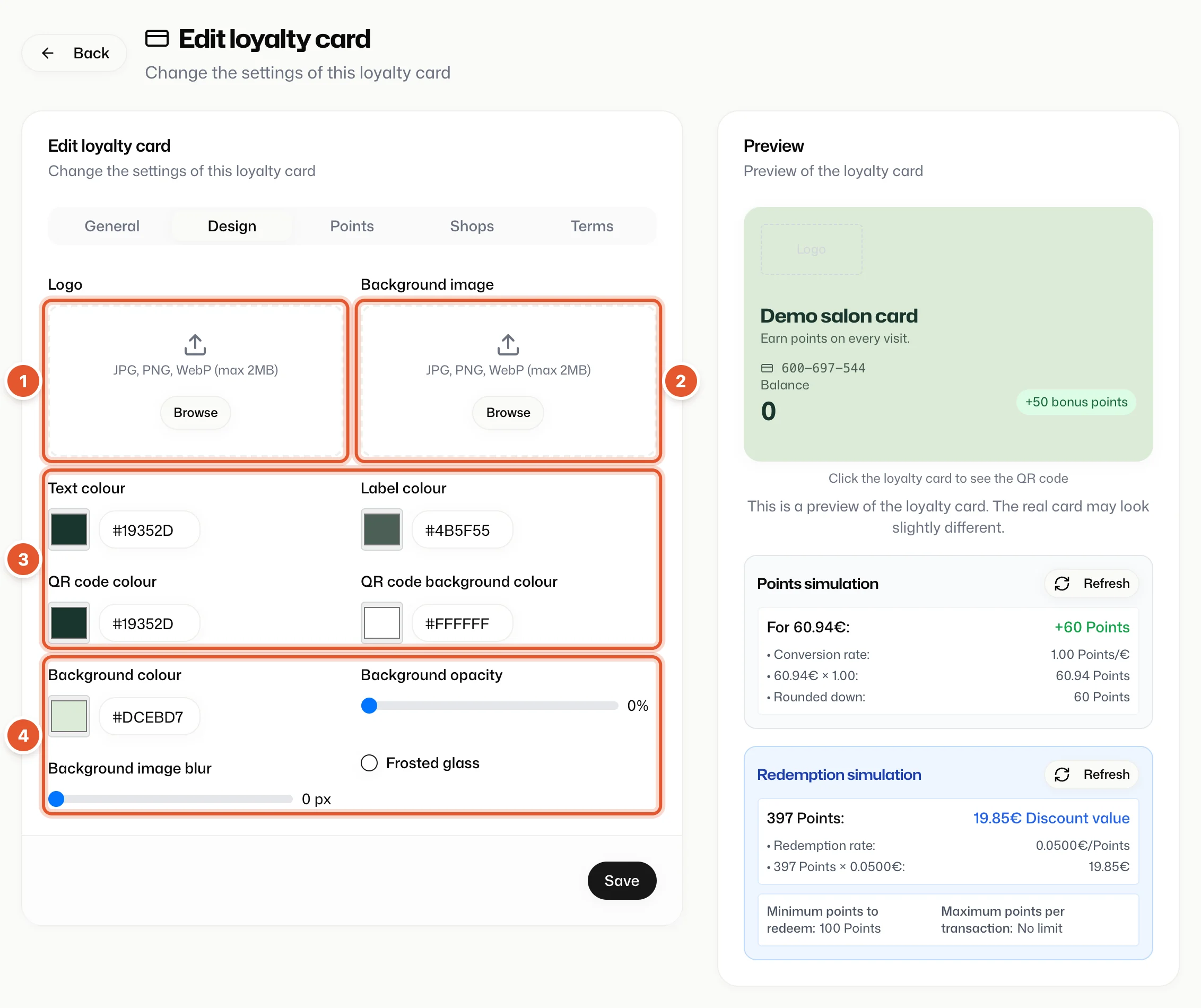
- 1. Logo — JPG, PNG or WebP, up to 2 MB.
- 2. Background image — instead of a single colour.
- 3. Colours — text, labels and the QR code.
- 4. Background — opacity and blur.
Points. Set what points are given for and how to spend them.
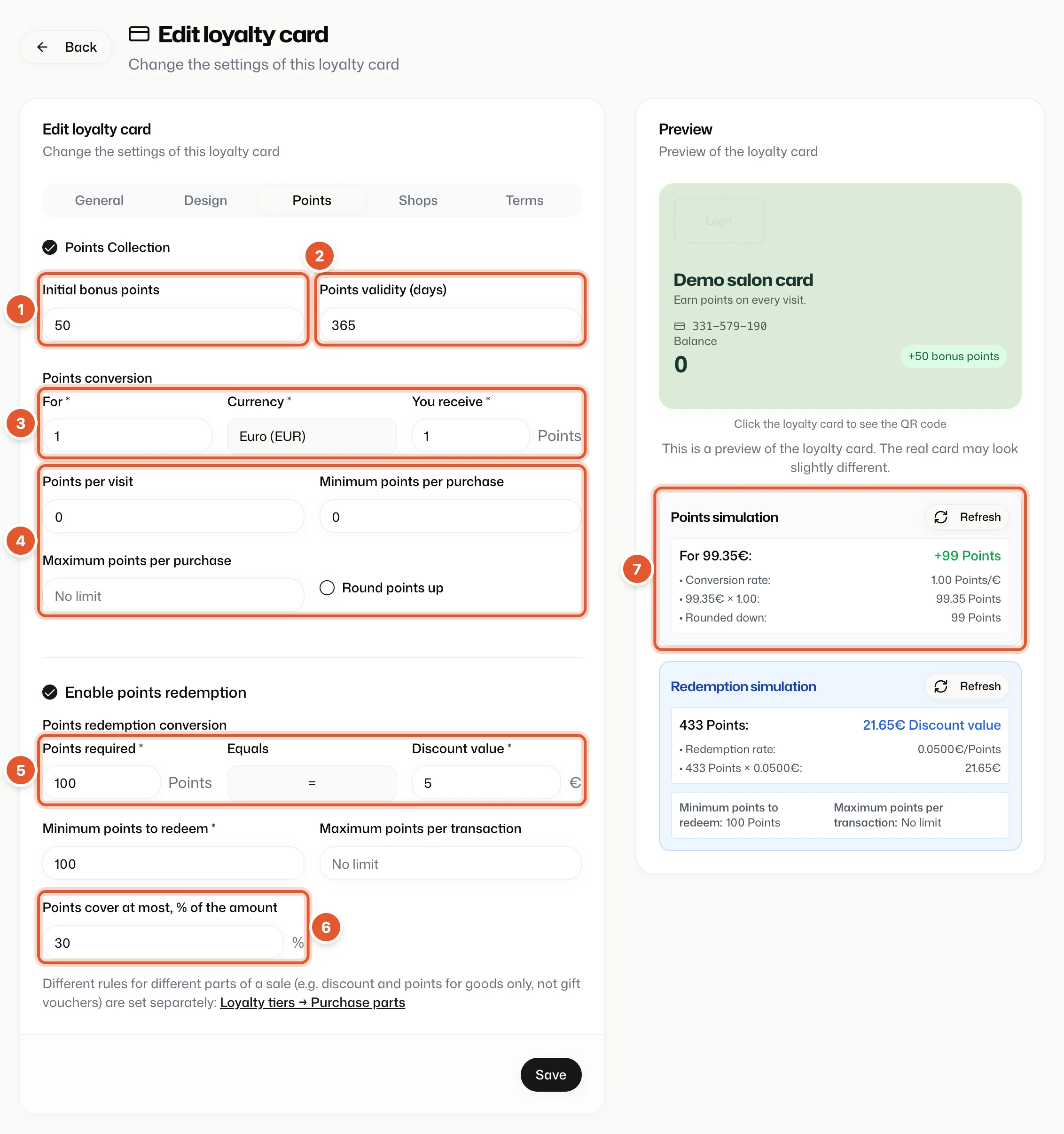
- 1. Initial bonus points — a gift for a new customer.
- 2. Points validity (days) — after how many days points expire.
- 3. Points conversion — how many points for how many euros.
- 4. Limits — the least and the most points per purchase.
- 5. Points redemption — how many points are worth how many euros.
- 6. Points cover at most, % of the amount — the largest share of a purchase points can cover.
- 7. Points simulation — an example by your rules.
Shops. Keep all, or choose only some.
Terms. Write the programme's rules. The customer sees them next to the card. Finally press Create.
How to check
The “Points simulation” block on the right shows how many points a customer would get for a sample purchase. Refresh picks another amount.
Points settings
| Field | What it means |
|---|---|
| Initial bonus points | The customer gets them once, when their card appears. |
| Points expiration (days) | After this many days, unused points expire. Empty – they never expire. |
| Minimum and maximum points | Limits for one purchase. Empty – no limit. |
| Enable points redemption | The customer can pay part of a purchase with points. |
| At most this % paid with points | The largest share of a purchase that points can cover. |
If different goods need different rules, use purchase parts.
View a card
In the list press the eye. You see how many customers have the card and how many points were given and used.
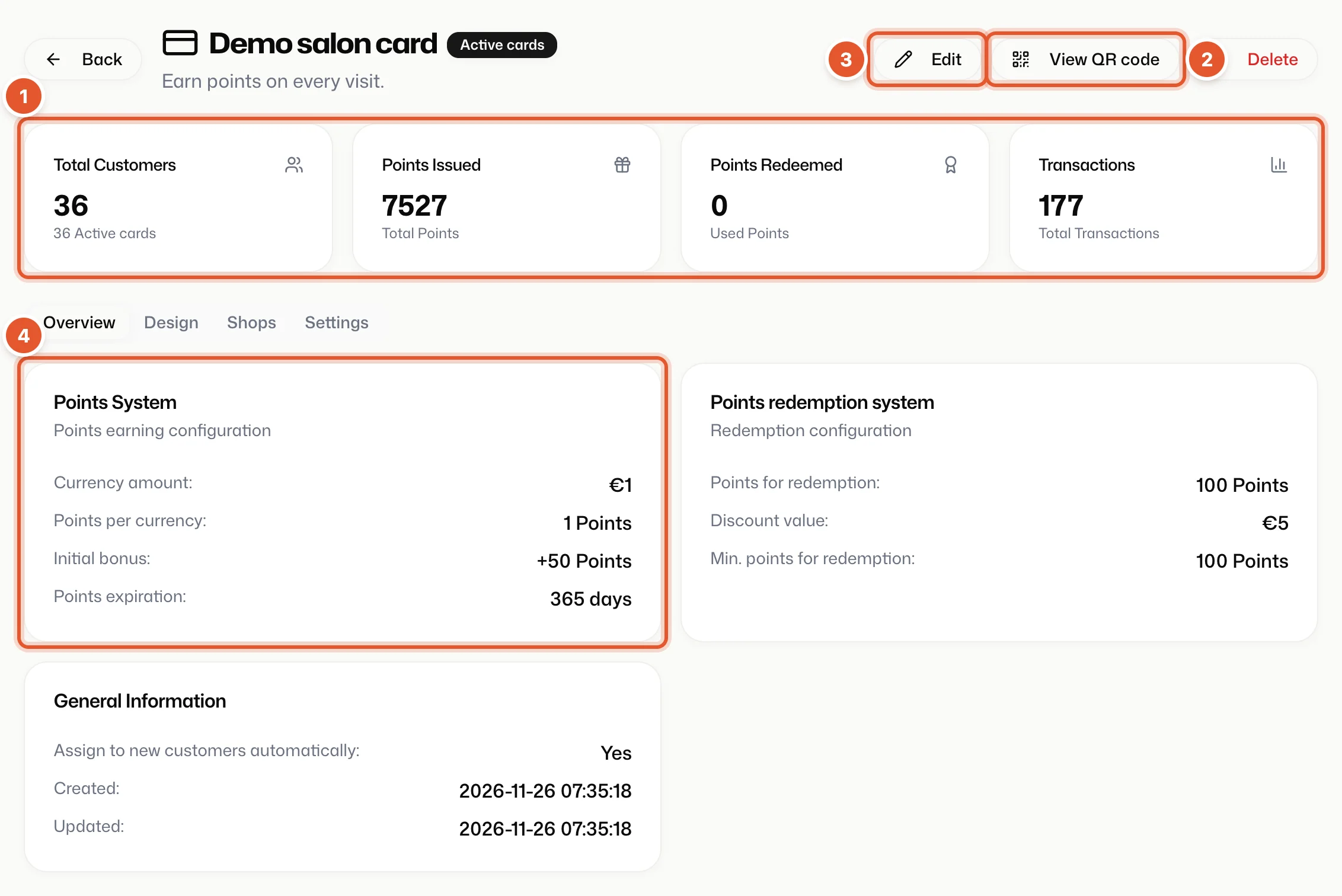
- 1. Numbers — customers, points given and used, purchases.
- 2. View QR code — a code for customers.
- 3. Edit — change the rules or the look.
- 4. Rules — what applies now.
View QR code opens a code you can print. A customer scans it with the app and the card appears for them.
Change a card
In the list press the pencil, change and press Save.
Applies at once
A new points rate applies to the next purchase. Points already given do not change.
The switch at the bottom of the card turns it off. Customers cannot use a card that is off, but the data stays.
Delete a card
Cannot be undone
A deleted card cannot be restored. If it is only temporarily not needed, turn it off with the switch.
If something goes wrong
| What you see | What to do |
|---|---|
| The till gives no points | Check that the card is active, earning is on and the shop is assigned to the card. |
| The till does not let customers pay with points | Check Enable points redemption, the minimum points and the largest share. |
| A customer does not see the card | Assign to new customers automatically must be ticked, or the customer must scan the QR code. |
Related pages
- Loyalty tiers – more benefits for the most loyal
- Points at the till – how the cashier uses points