

Loyalty tiers
How to create tiers with discounts and set up purchase parts.
Tiers make customers come back: the more they buy, the more they get. Here you also set what a purchase consists of.
Open Loyalty tiers.
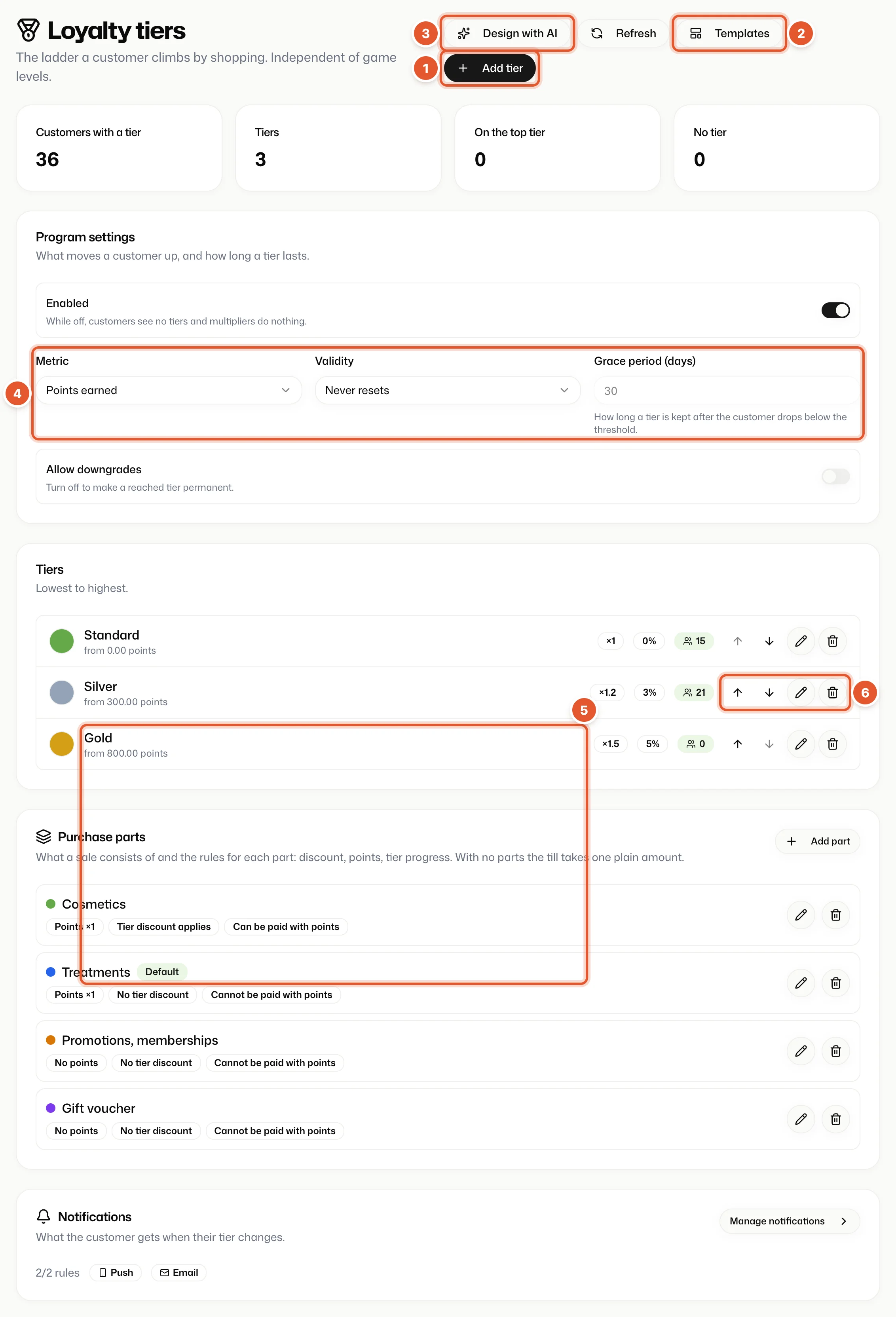
- 1. Add tier — a new tier.
- 2. Templates — ready programmes.
- 3. Design with AI — describe it in words; AI suggests the tiers.
- 4. Programme settings — what moves customers up and how long it lasts.
- 5. Tiers — from the lowest to the highest.
- 6. Actions — change the order, edit, delete.
Start from a template
Press Templates, look through them and press Use.
Replaces your current tiers
Applying a template replaces the current tiers with the template's tiers.
Programme settings
| Field | What it means |
|---|---|
| Metric | What moves a customer up: points earned, amount spent or visits. |
| Period | Over what time it counts: always, 3, 6 or 12 months, or a calendar year. |
| Allow downgrade | When on, a customer can drop. When off, a reached tier stays for good. |
| Grace (days) | How many days a tier holds after falling below the threshold. |
Changes are saved at once.
Add a tier
Press Add tier and fill in the window.
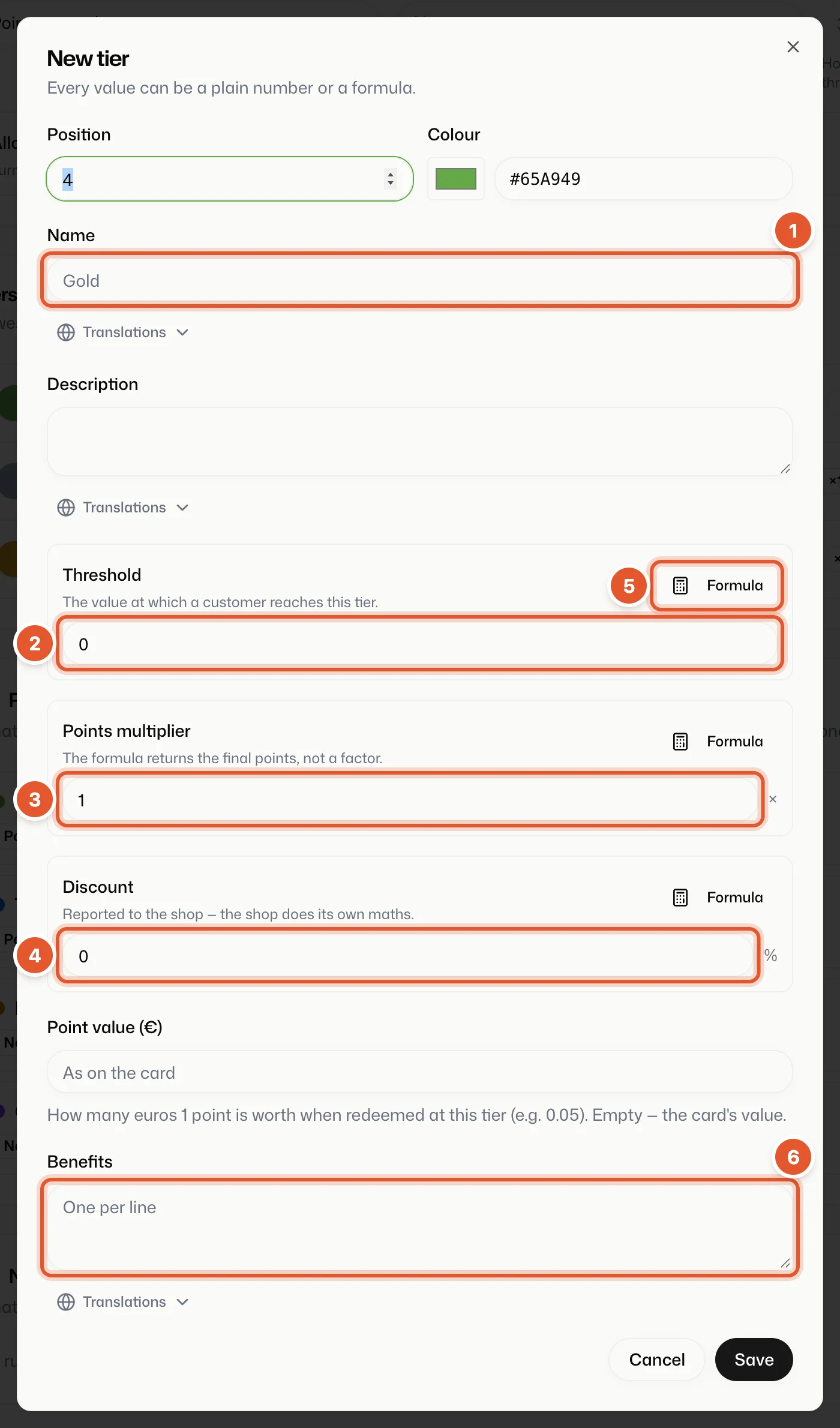
- 1. Name — how the customer sees the tier.
- 2. Threshold — the value at which the tier is reached.
- 3. Points multiplier — 1.2 – a fifth more points.
- 4. Discount — percent for this tier.
- 5. Formula — a condition instead of a number.
- 6. Benefits — what else the customer gets, one per line.
The Formula switch lets you write a condition instead of a number. If the formula fails, the simple value applies. AI can write the formula – describe the rule in your own words and check it with Test.
The arrows in the list change the order of tiers. The bin deletes a tier.
Purchase parts
Parts let you apply different rules, for example: a tier discount only on cosmetics, and no points for a gift voucher. The cashier chooses what each amount is for.
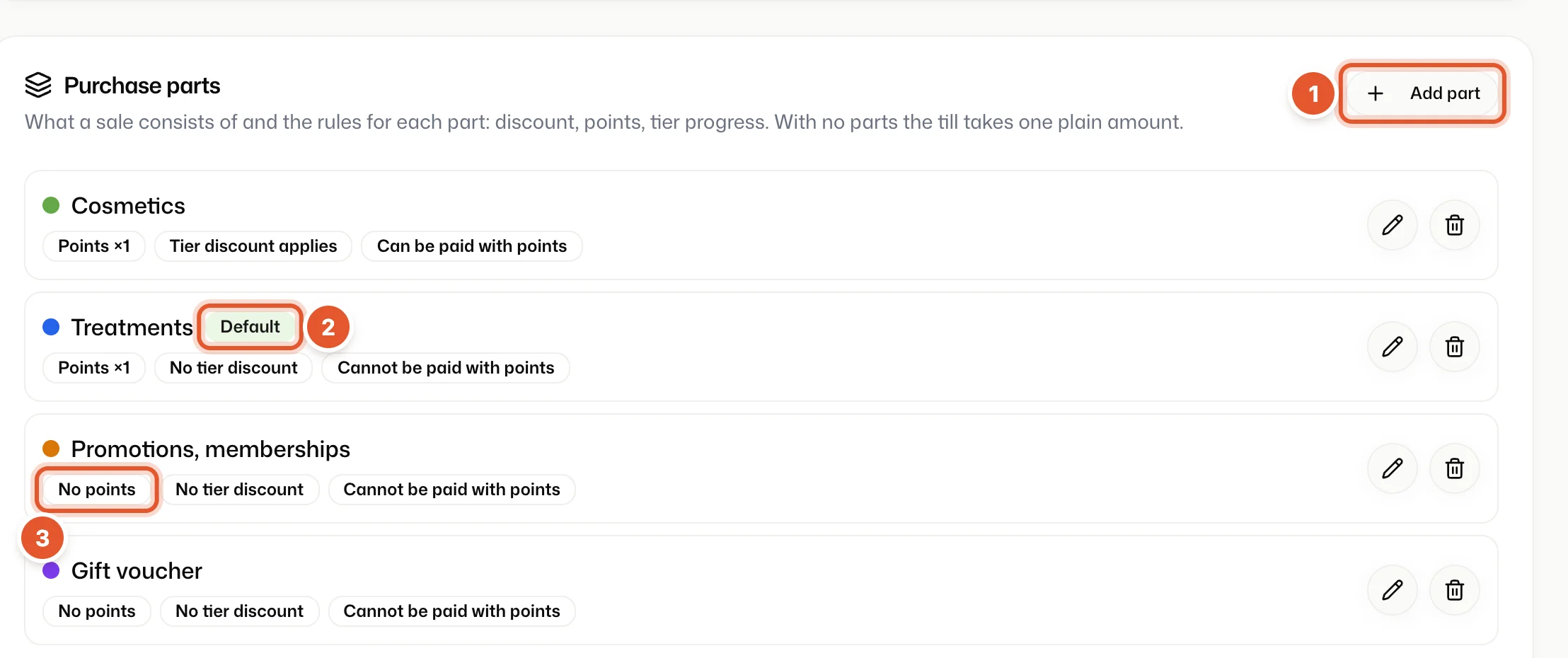
- 1. Add part — a new purchase part.
- 2. Default — applies when the cashier does not choose a part.
- 3. Rules — points, tier discount, paying with points.
Press Add part or the pencil.
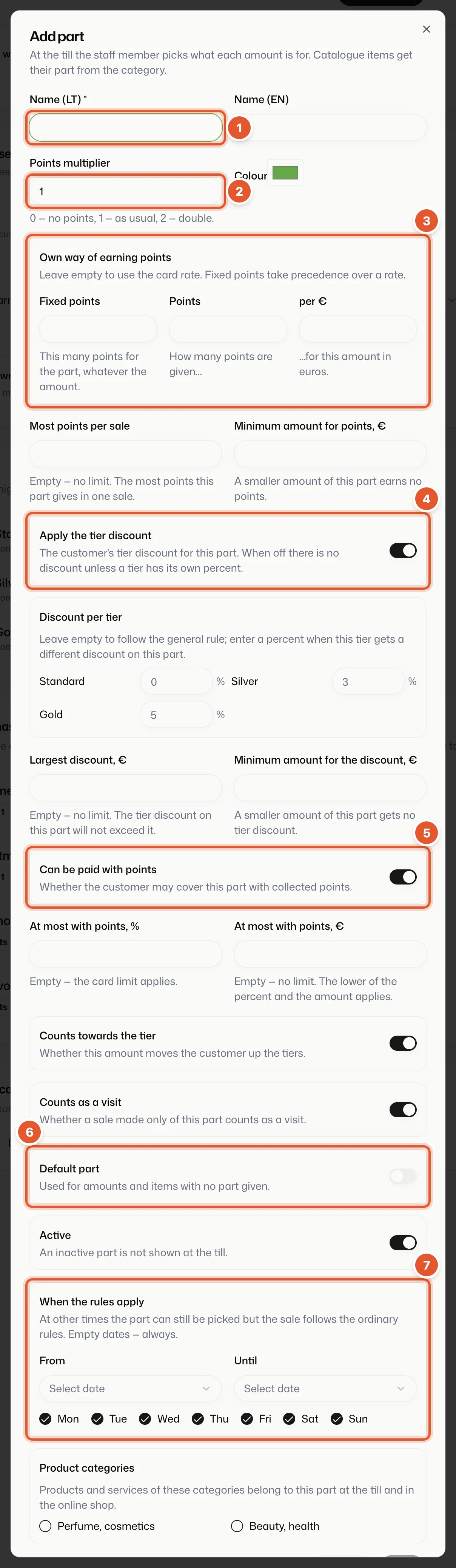
- 1. Name — the cashier sees it at the till.
- 2. Points multiplier — 0 – no points.
- 3. Own way of earning points — a rate other than the card’s.
- 4. Apply the tier discount — whether the tier percentage applies.
- 5. Can be paid with points — whether points can cover this part.
- 6. Default part — when no part is chosen.
- 7. When the rules apply — dates and weekdays.
- Points multiplier – 0 means “no points”, 1 – as usual, 2 – double.
- Apply the tier discount – whether the customer's tier discount applies to this part. Below you can set another percentage for a single tier.
- Can be paid with points – whether the customer can cover this part with points.
- Counts towards tier progress – whether this amount moves the customer up.
- Default part – applies when the cashier does not choose one.
Promotions and memberships
Create a part “Promotions, memberships”: multiplier 0, no tier discount, no paying with points. Then a promotion does not stack with the loyalty discount.
Assign a tier manually
Open the customer's page and press Assign tier. More in Customers.
If something goes wrong
| What you see | What to do |
|---|---|
| The customer should have moved up but did not | Tiers are recalculated after a purchase and once a day. Check that the part counts towards tier progress. |
| No tier discount at the till | Check that the purchase part allows it and the programme is on. |
| “The formula must return a number.” | The formula's result must be a number, such as amount > 50 ? 2 : 1. |