

Products and services
How to build a product catalogue, upload and export products.
Customers see the catalogue in the Loyalty.lt app. The cashier picks from it too if the shop uses “Full POS”.
Open Products and servicesAll products and services.
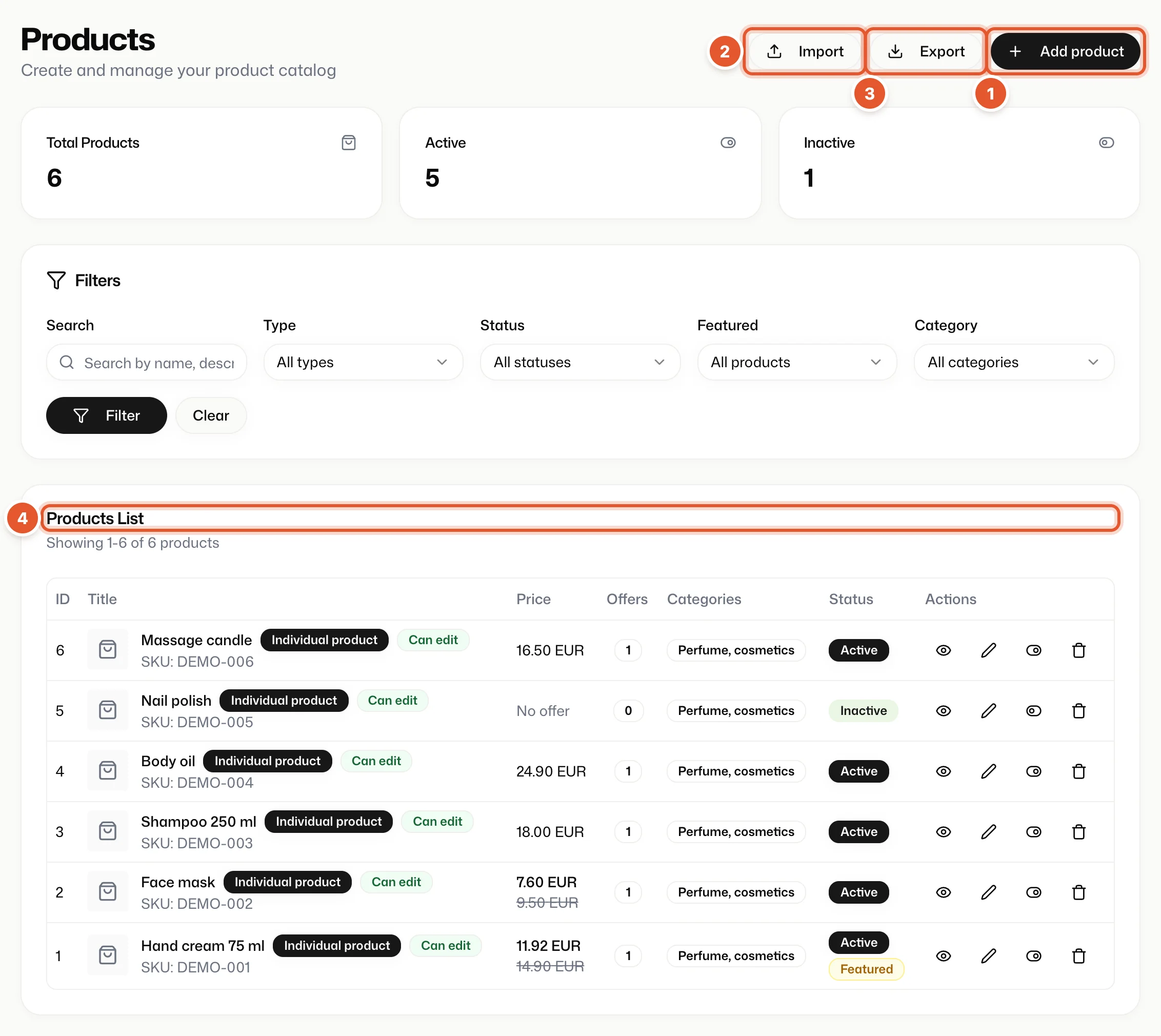
- 1. Add product — a new product or service.
- 2. Import — many products from an XML file.
- 3. Export — save products to a file.
- 4. Products list — the crossed-out price is the usual one, the other is the promotion.
Add a product
Press Add product, type the name and description and upload a picture. Write with AI helps with the text.
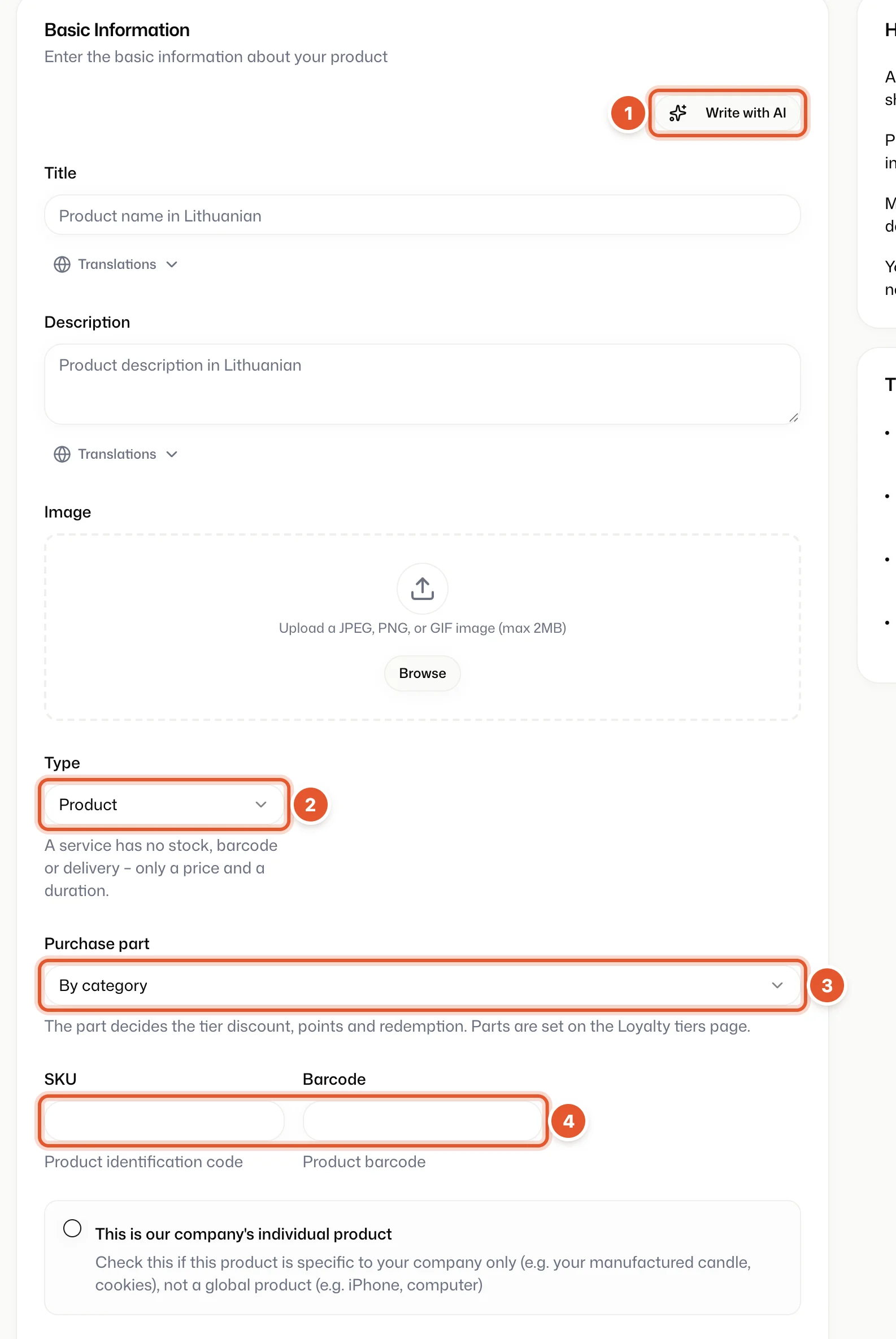
- 1. Write with AI — suggests the name and description.
- 2. Type — product or service.
- 3. Purchase part — points and discounts depend on it.
- 4. Codes — so the product can be scanned at the till.
Mark whether it is a product or a service and choose the purchase part. Points and discounts depend on it.
Enter the price and choose a category. Press Create.
Your own or a shared product
Tick “This is our company's individual product” if you make the product yourself. You cannot change the description of shared products (such as a phone).
Product page
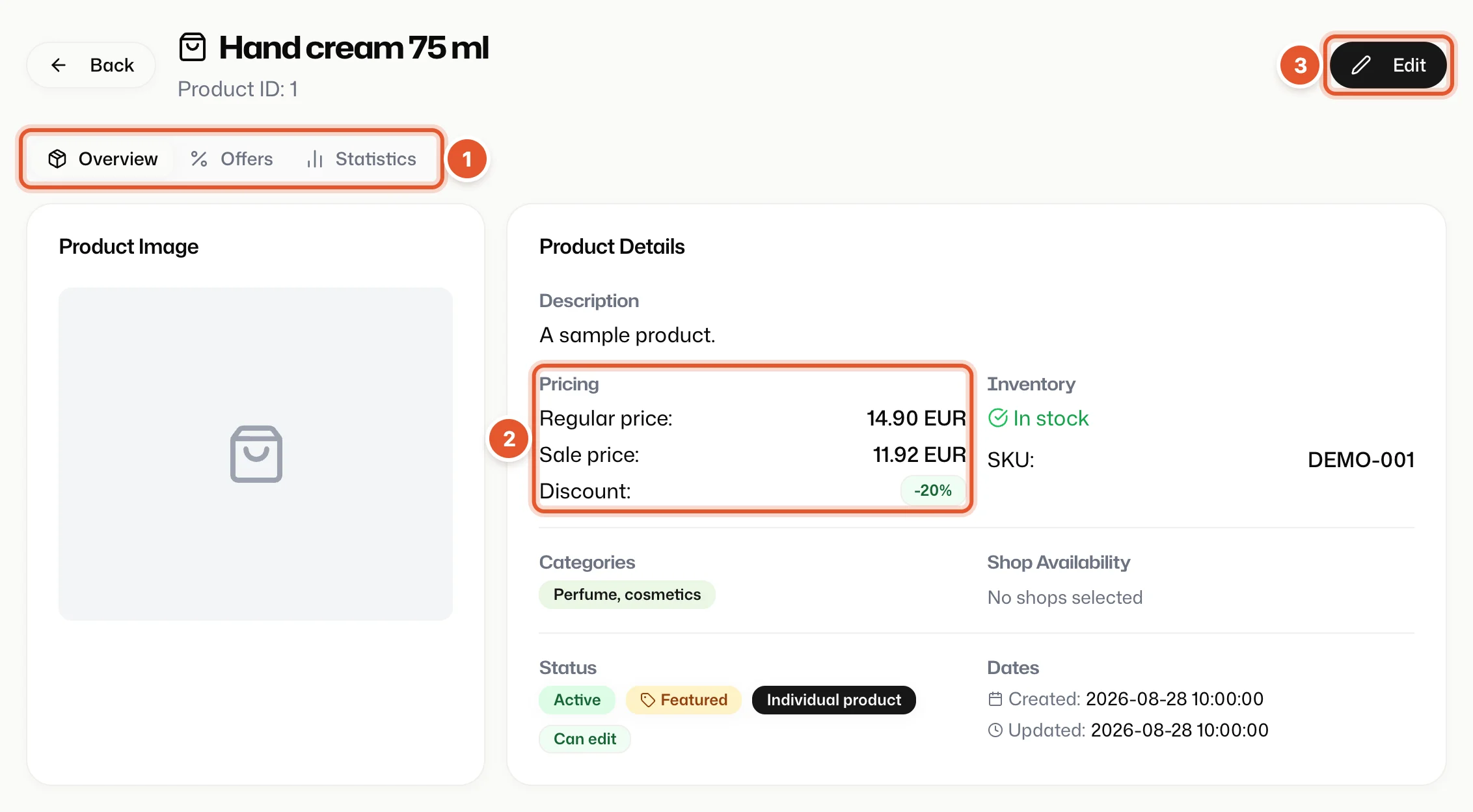
- 1. Tabs — overview, prices and statistics.
- 2. Pricing — the usual and the promotional price.
- 3. Edit — change the product.
The Offers tab has prices and discounts, Statistics – how many times the product was viewed and clicked.
Upload many products
Press Import, then Download XML Template.
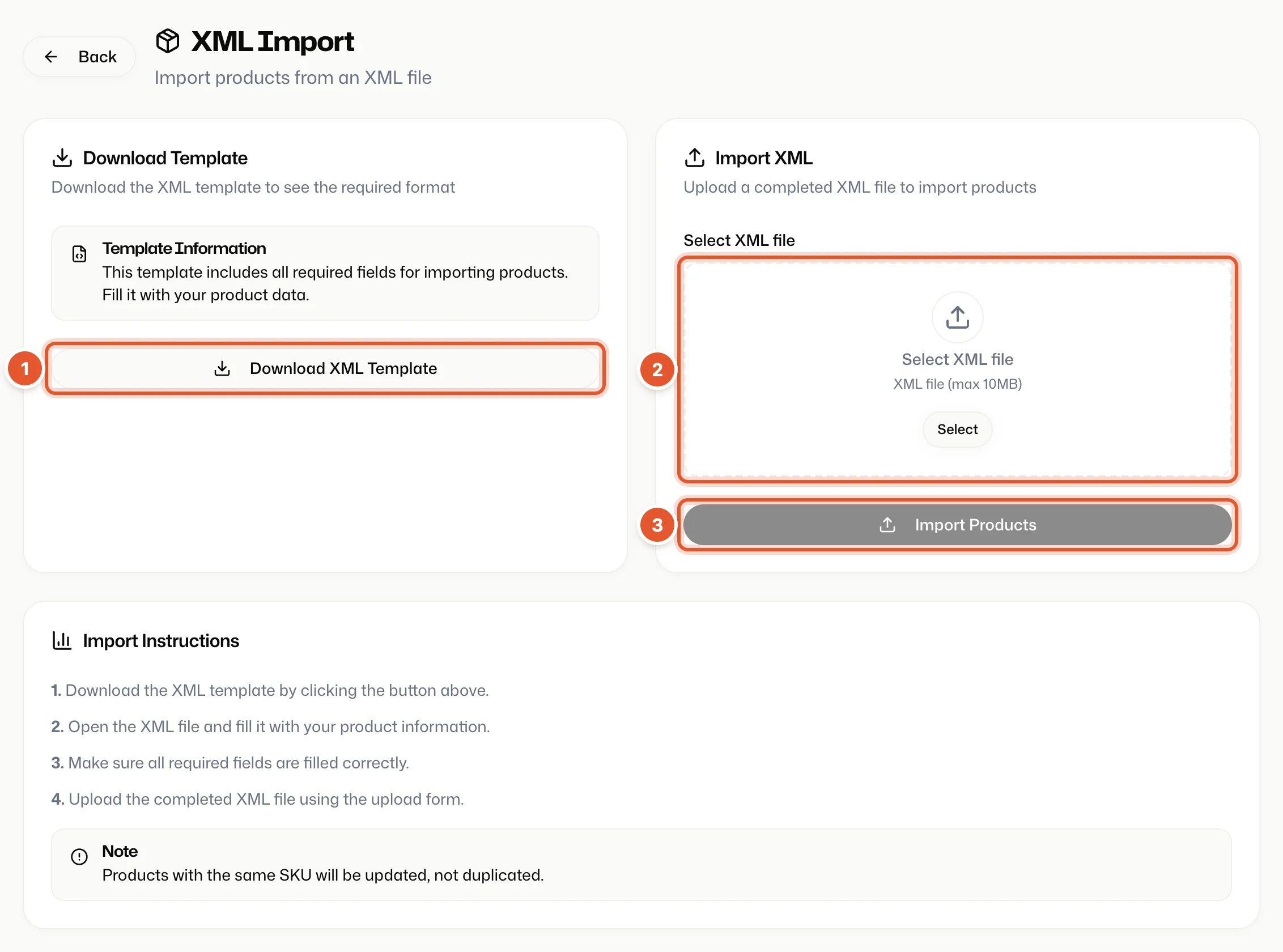
- 1. Download XML Template — which fields are needed.
- 2. XML file — up to 10 MB.
- 3. Import Products — uploads the products.
Fill in the template. Products with the same SKU are updated, not added twice.
Upload the file (up to 10 MB) and press Import Products.
Save products to a file
Press Export, choose XML, CSV or JSON and press Start Export. Only your products and offers are saved.
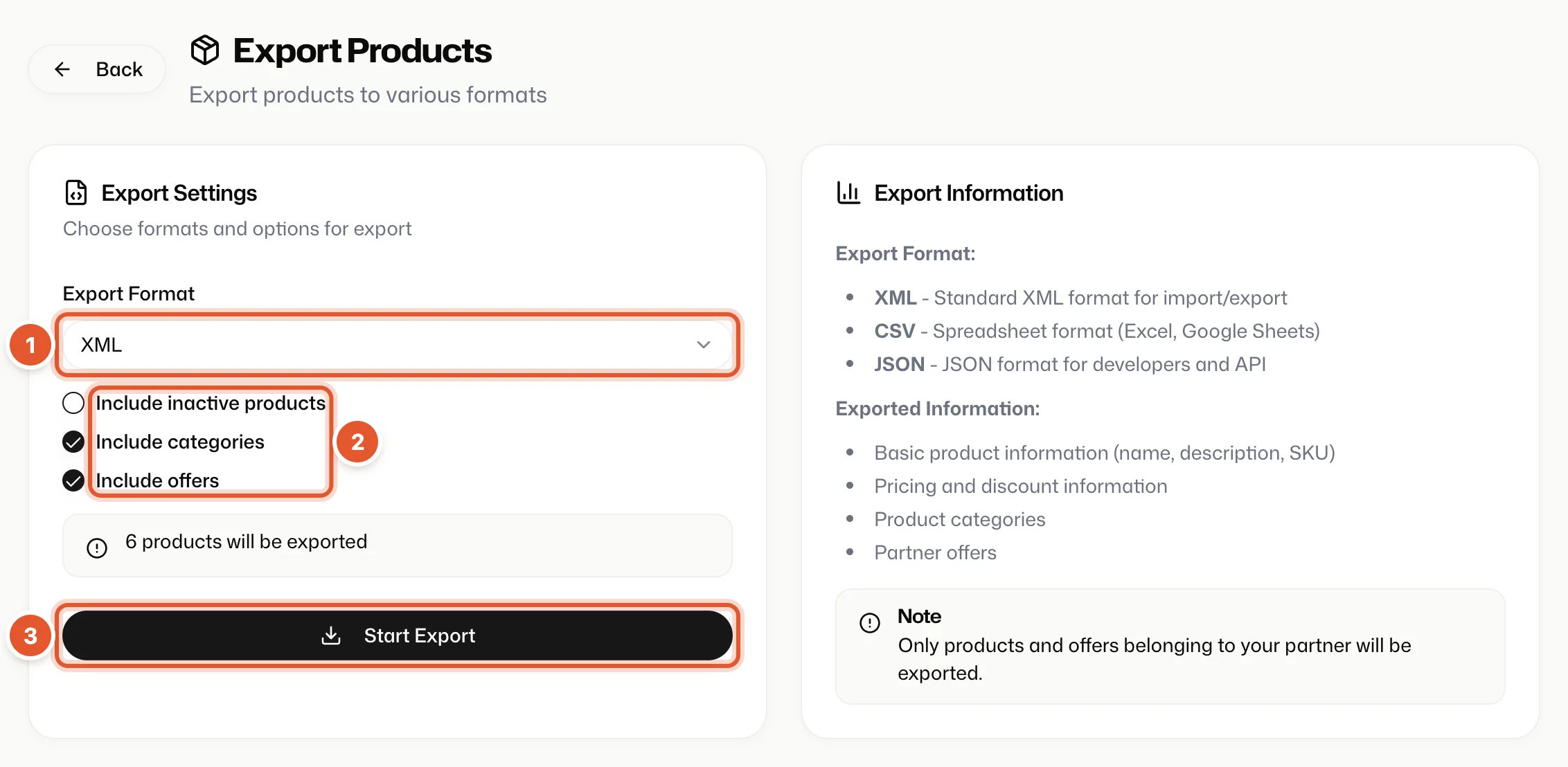
- 1. Export format — XML, CSV or JSON.
- 2. What to include — inactive products, categories, promotions.
- 3. Start Export — the file downloads.
If something goes wrong
| What you see | What to do |
|---|---|
| “Invalid file type. Please select an XML file.” | Excel cannot be uploaded here – fill in the XML template. |
| The product is not at the till | Check that it is active and assigned to the shop. |