

Tier notifications
How to tell a customer automatically that their tier went up, down or is about to go up.
A rule sends the customer a notification when their tier changes. You can send push, email and SMS – the channels your plan includes.
Open Loyalty tiers and press Manage notifications.
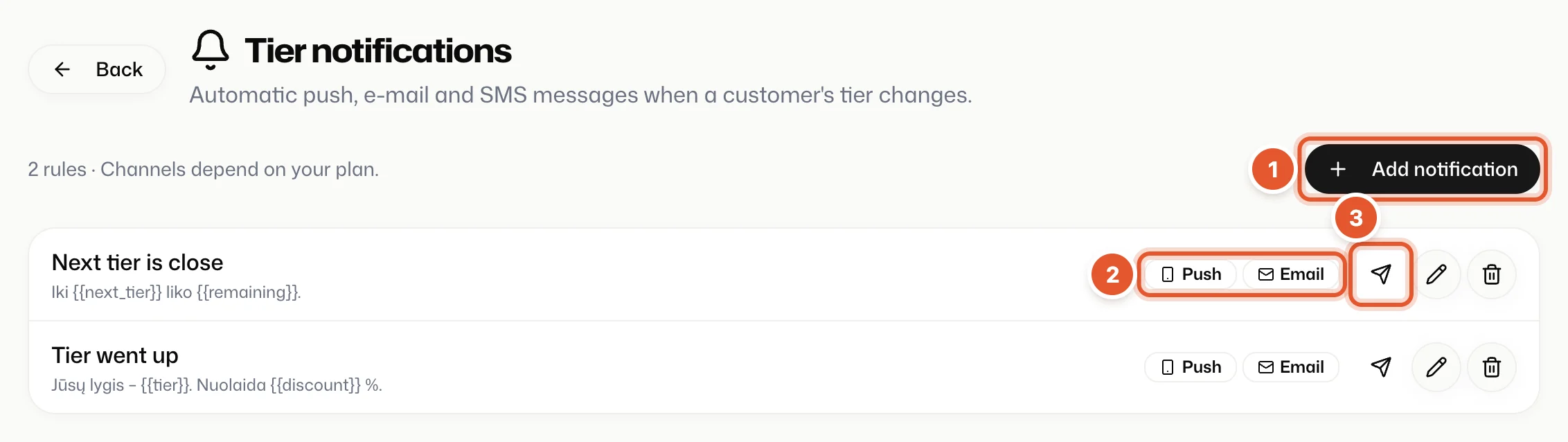
- 1. Add notification — a new rule.
- 2. Channels — how it is sent.
- 3. Send me a test — a test notification to you.
Create a rule
Press Add notification and choose the event. If needed, choose one tier.
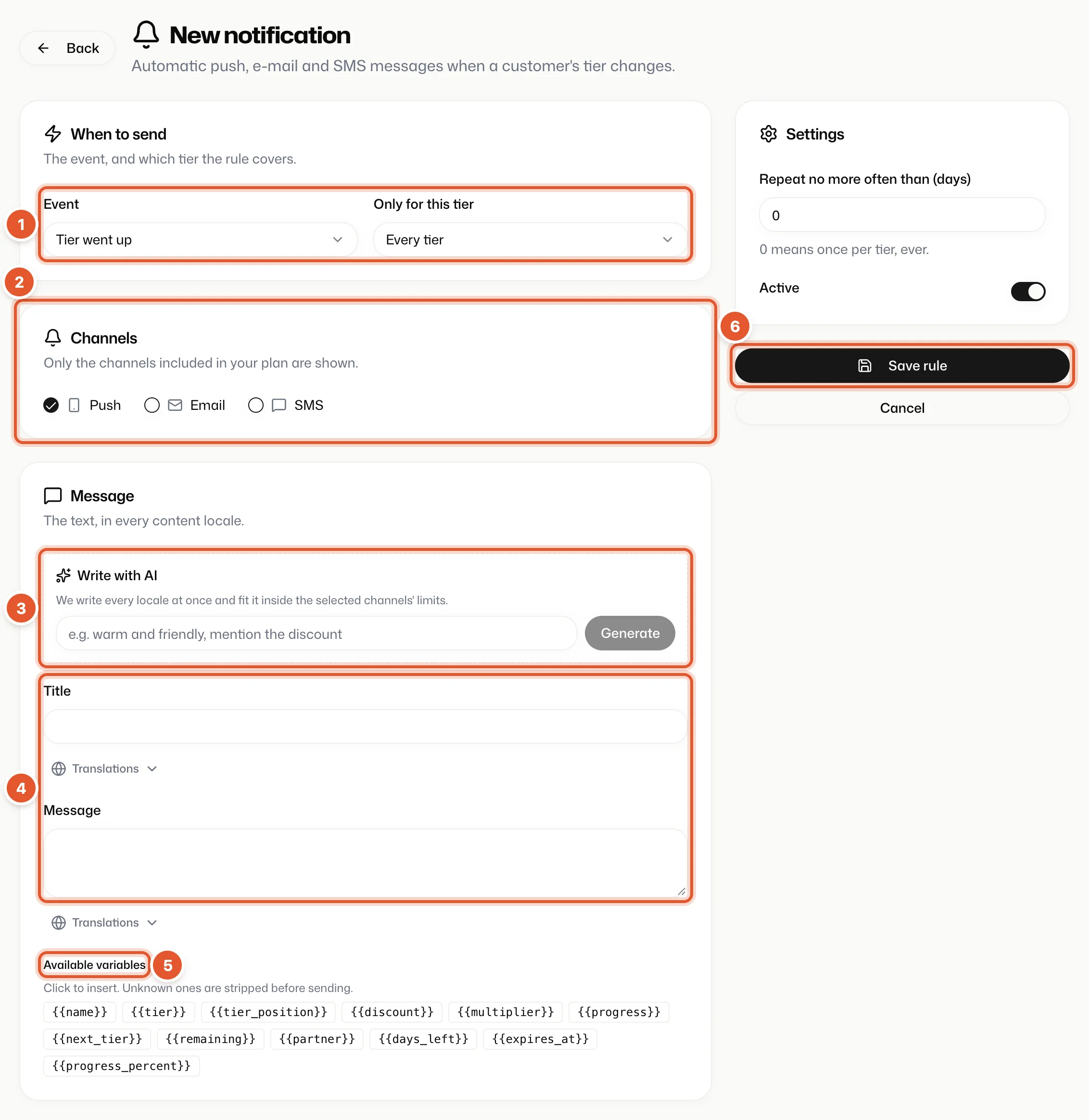
- 1. Event — when to send and for which tier.
- 2. Channels — push, email, SMS.
- 3. Write with AI — AI suggests the text, you correct it.
- 4. Title and Text — what the customer gets.
- 5. Available variables — click to insert into the text.
- 6. Save rule — the rule starts working.
Tick the channels and write the title and text. Click a variable to insert it, such as {{tier}} – the tier's name.
Press Save rule.
SMS costs money
You pay for every SMS at your rates. Push and emails count towards your plan.
Events
| Event | When it is sent |
|---|---|
| Tier upgraded | The customer reached a higher tier. |
| Next tier approaching | The customer has gone the set share of the way, such as 80 %. |
| Grace ending | The tier will drop soon. |
| Tier downgraded | The customer went back to a lower tier. |
| Tier assigned manually | You changed the tier on the customer's page. |
Test it
In the list press Send me a test. The test notification comes to you, not to customers.
If something goes wrong
| What you see | What to do |
|---|---|
| “Your plan includes no notification channels.” | Change the plan or turn the service on. |
| The customer did not get it | Push reaches only those with the app. SMS and email need a phone or an email address. |