

Product promotions
How to set a product's promotional price, for one product or a whole category at once.
A promotion sets the product's price, discount and the time it is valid. Customers see it next to the product in the app.
Open Products and servicesProduct Offers.
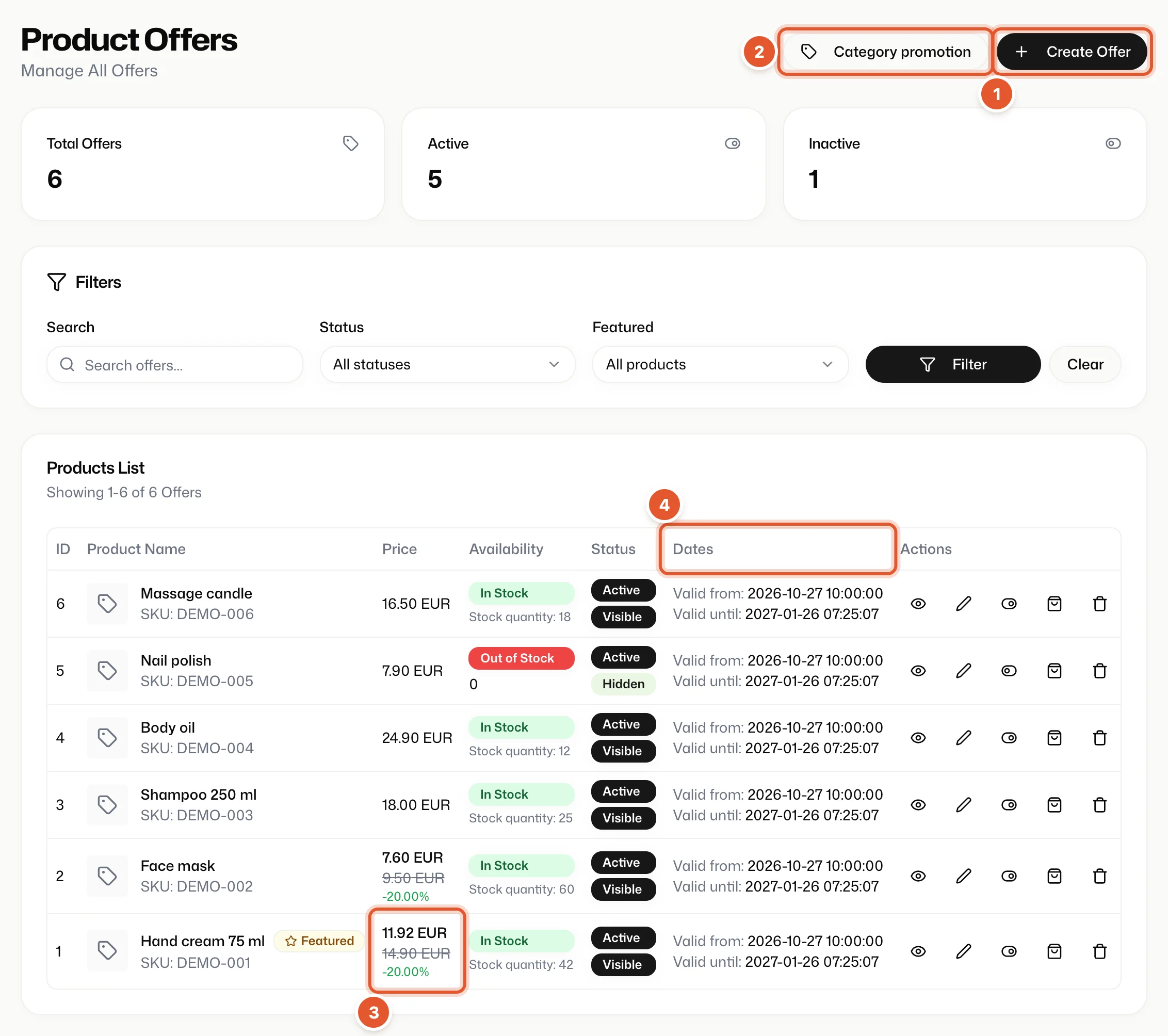
- 1. Create Offer — for one product.
- 2. Category promotion — many products at once.
- 3. Price — promotional, usual and the discount.
- 4. Dates — when the promotion is valid.
Create a promotion for one product
Press Create promotion and choose the product.
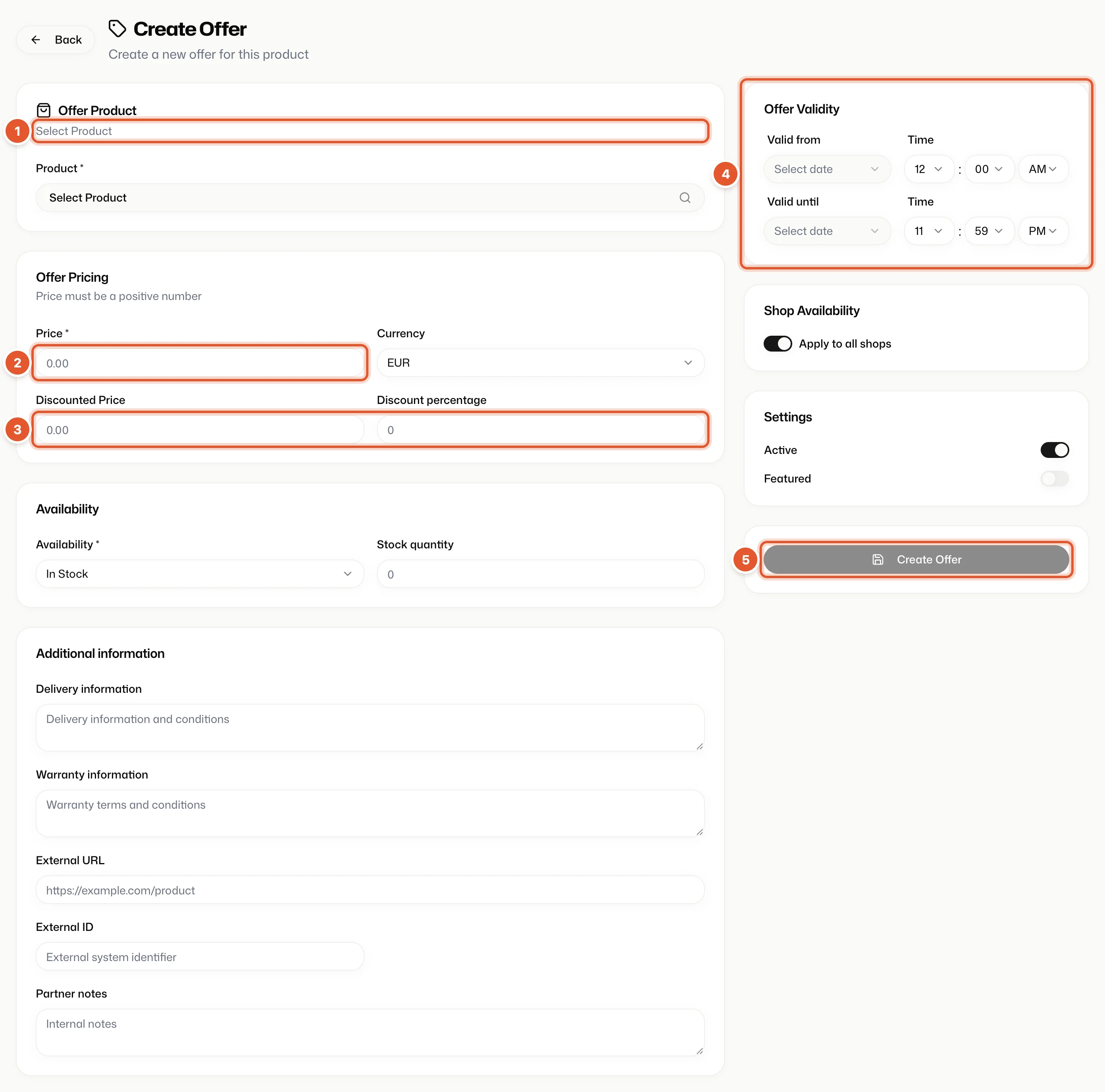
- 1. Product — which product.
- 2. Price — the usual price.
- 3. Discount — the discounted price or a percentage.
- 4. Validity — from when until when.
- 5. Create Offer — saves it.
Enter the price and the discounted price, or the discount percentage.
Set from when until when it is valid, and save.
A promotion for a whole category
Changes many products at once
The discount applies to all products of the chosen category and its subcategories. Products that already have another promotion at that time are skipped.
Press Category promotion, choose the category, the discount and the dates. The usual price does not change – it comes back by itself when the promotion ends.
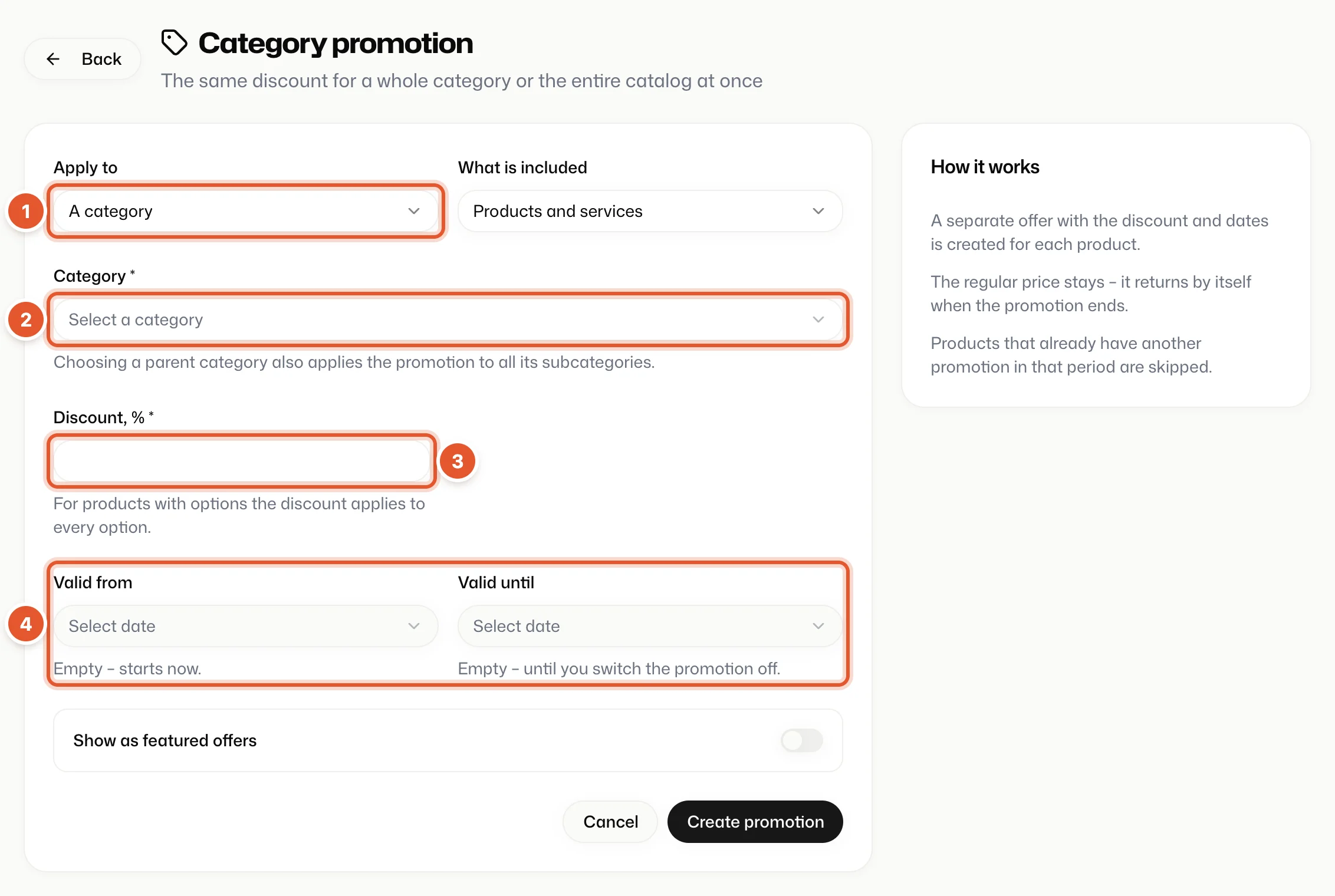
- 1. Apply to — a category or the whole catalogue.
- 2. Category — its subcategories too.
- 3. Discount, % — the same for all products.
- 4. Validity — empty – from now until you turn it off.
Stop a promotion
In the list press the switch. A hidden promotion is not shown to customers.
If something goes wrong
| What you see | What to do |
|---|---|
| “You already have an active offer for this product during the provided dates. Offers cannot overlap in time.” | Change the dates or stop the earlier promotion first. |