

Staff
How to add a staff member, give them a code, set the role and see their sign-ins.
Everyone who works at the till has their own staff record. That way a purchase shows who sold it.
Open StaffAll Staff.
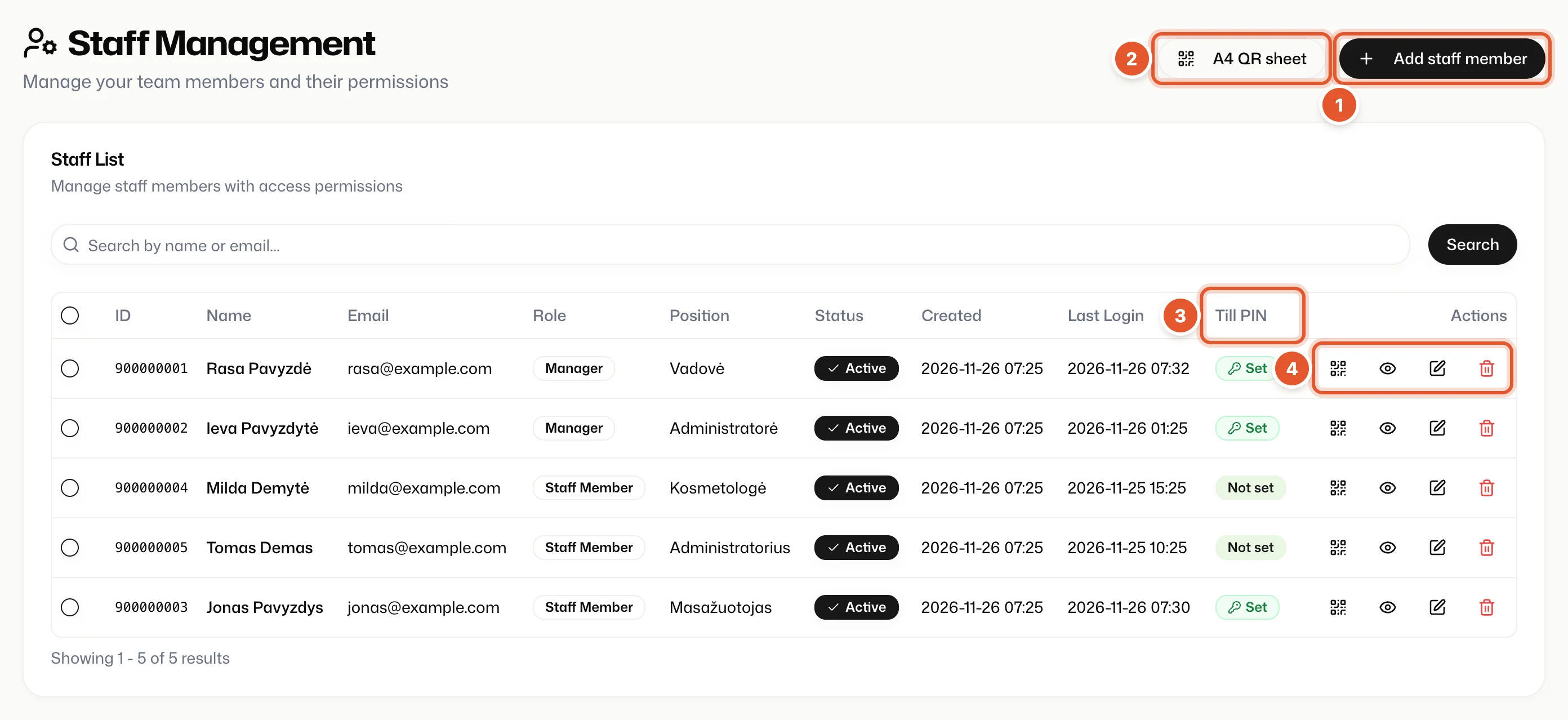
- 1. Add staff member — a new person.
- 2. A4 QR sheet — the ticked staff members' codes for printing.
- 3. Till PIN — set or not yet.
- 4. Actions — QR code, view, edit, delete.
Add a staff member
Press Add staff member, type the name, email and position.
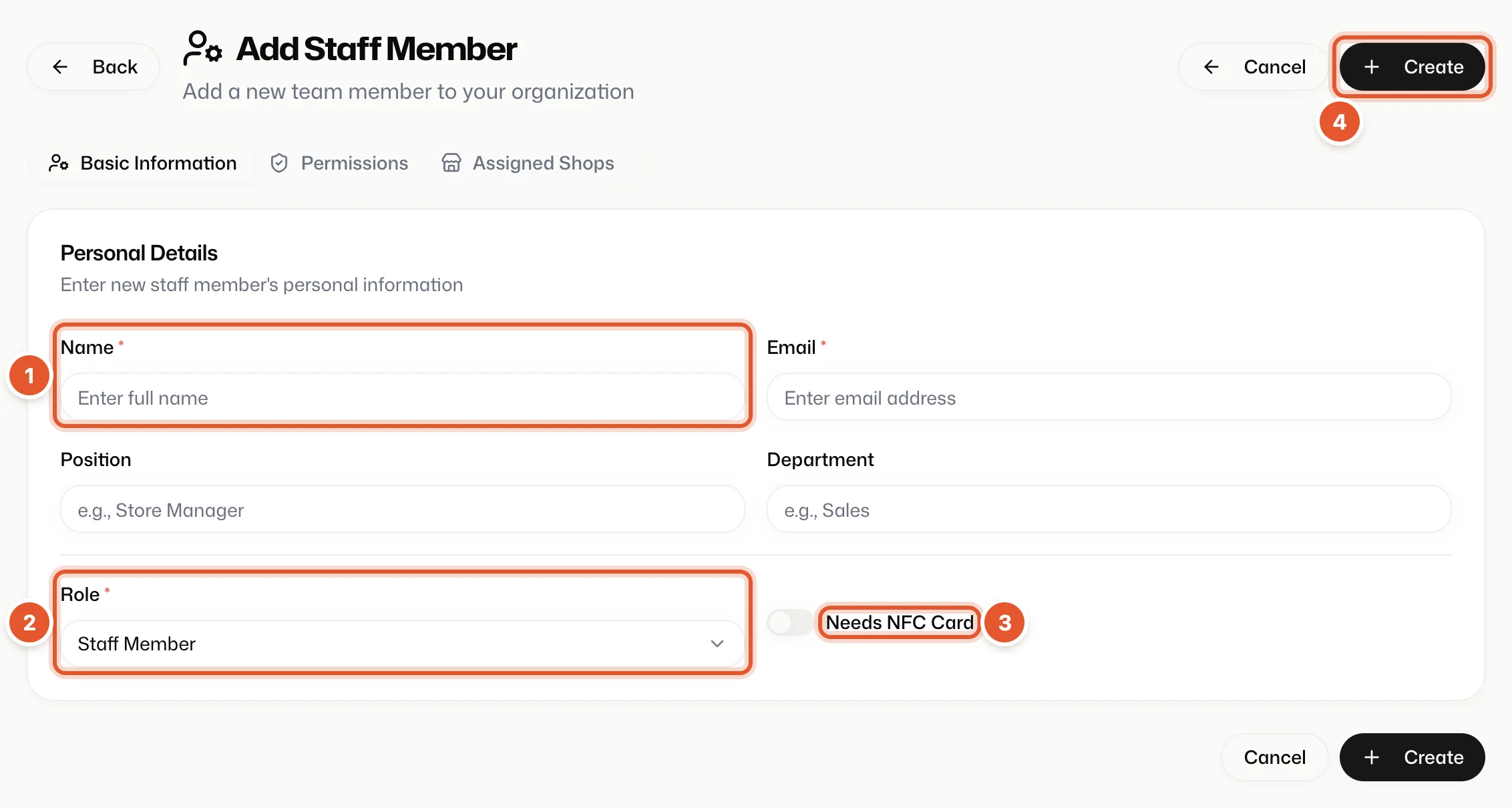
- 1. Name — first and last name.
- 2. Role — staff member or manager.
- 3. Needs NFC Card — if they will sign in by holding a card.
- 4. Create — saves the staff member.
Choose the role.
| Role | What they can do |
|---|---|
| Staff member | Work at the till. |
| Manager | Work at the till, approve discounts with their PIN and use the portal. |
Press Create. Then assign shops and permissions on the staff member's page.
Give the staff member their code: Generate Card creates a card with the code, Send welcome email sends it by email.
The code is like a key
Anyone with the code can sign in to the till. Do not stick it where it can be seen. If it is lost, generate a new one.
Many staff at once: tick them and press A4 QR sheet – you print the codes on one sheet.
Staff member page
In the list press the eye.
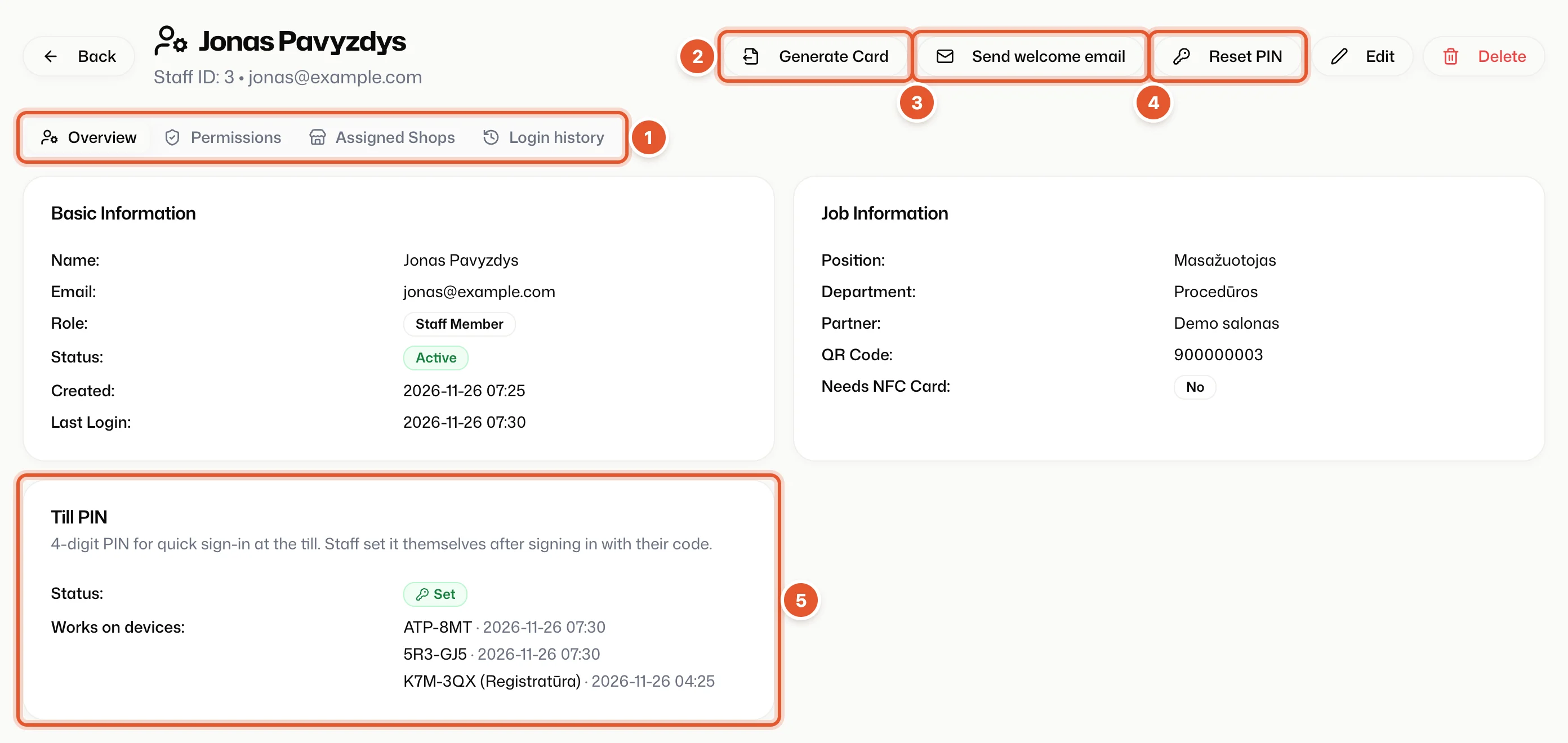
- 1. Tabs — overview, permissions, shops, sign-ins.
- 2. Generate Card — a card with the sign-in code.
- 3. Send an email — the code by email.
- 4. Reset PIN — forgotten or learned by someone.
- 5. Till PIN — status and devices.
- Overview – details, the till PIN and the devices it works on.
- Permissions – what they see and can change in the portal.
- Assigned shops – where they can work. Nothing chosen – everywhere.
- Sign-in history – when, how and on which device they signed in.
Till PIN
The staff member creates the PIN at the till, the first time they sign in with the code. The portal only shows whether it exists.
If the PIN is forgotten or someone else learned it, press Reset PIN. Next time the staff member signs in with the code and creates a new PIN.
Sign-in history
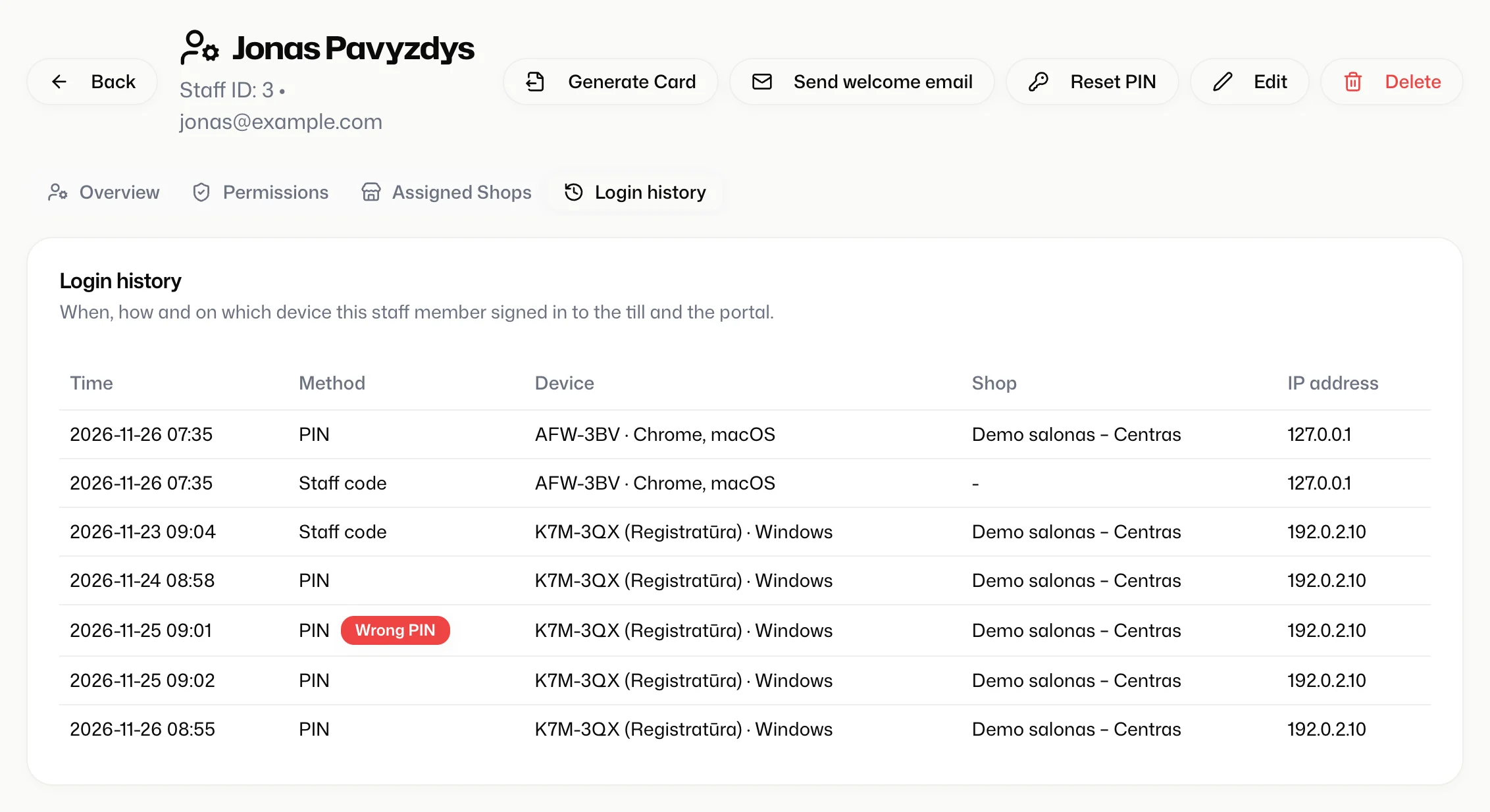
Failed attempts are shown too. The device code is the same as in the till's corner and on the Till devices page.
A staff member left
Turn the staff member off or delete them.
Deleting cannot be undone
Earlier purchases stay. If they may come back, only turn them off.
If something goes wrong
| What you see | What to do |
|---|---|
| The staff member cannot sign in | Check that they are active and assigned to that shop. |
| The PIN is locked until a time | Too many wrong attempts. Wait or reset the PIN. |
| No device in the sign-in history | These are old sign-ins. New ones record the device. |