

Customer
How to find a customer by card or phone and register a new one.
Choose the customer before payment: without a customer the purchase cannot be recorded. The customer gets the points and their tier discount. An amount you have already entered is kept.
Find a customer
There are three ways:
- With a scanner or the camera – scan the QR code or barcode on the card. With a scanner you press nothing.
- By card number – Manually → Card.
- By phone – Manually → Phone.
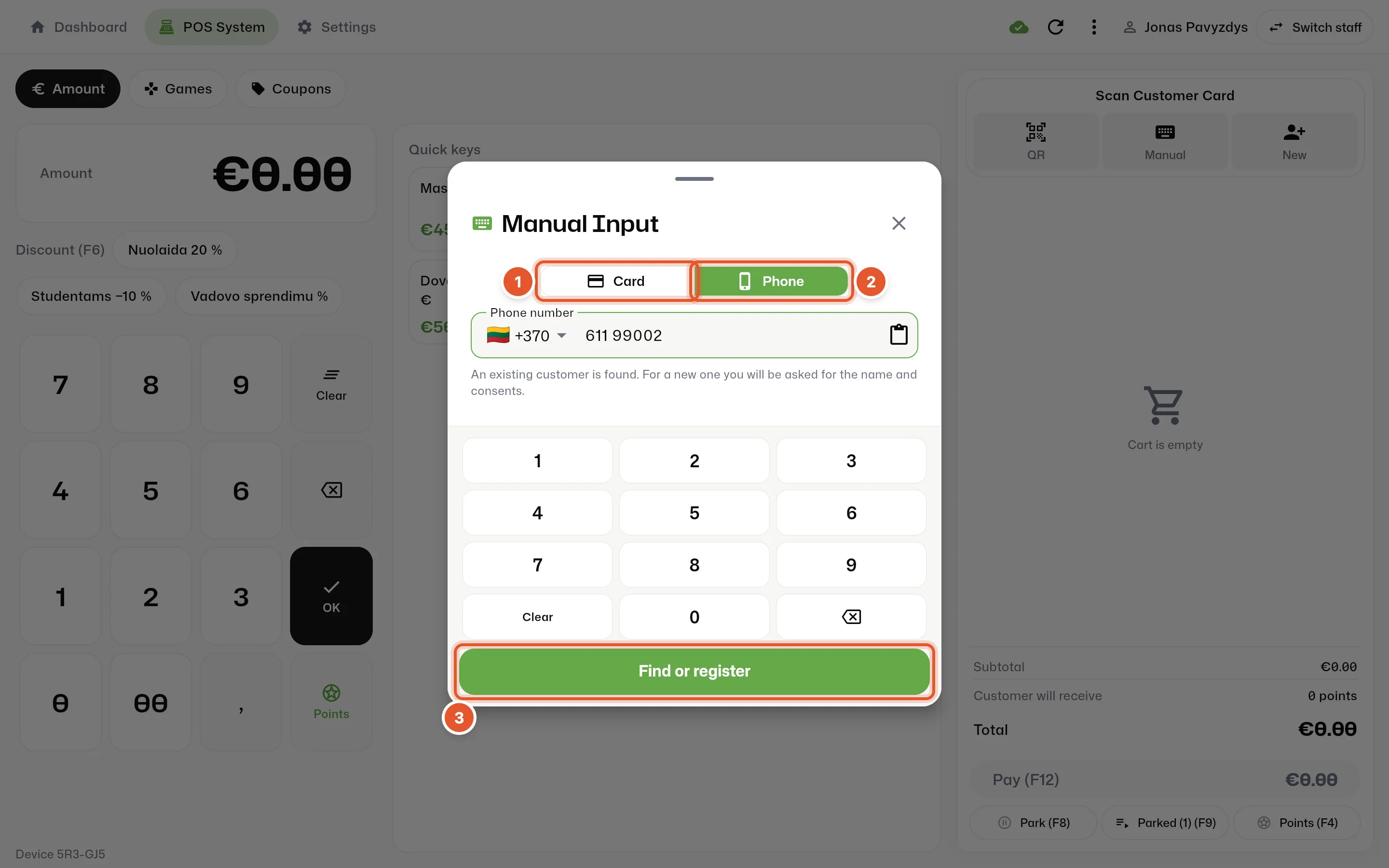
- 1. Card — search by the 9-digit card number.
- 2. Phone — search by phone number. The till remembers what you used last time.
- 3. Find or register — an existing customer opens at once; a new one gets the registration window.
Faster
Paste a number copied from another app with Ctrl+V straight into the till. The search opens by itself.
What you see once a customer is chosen
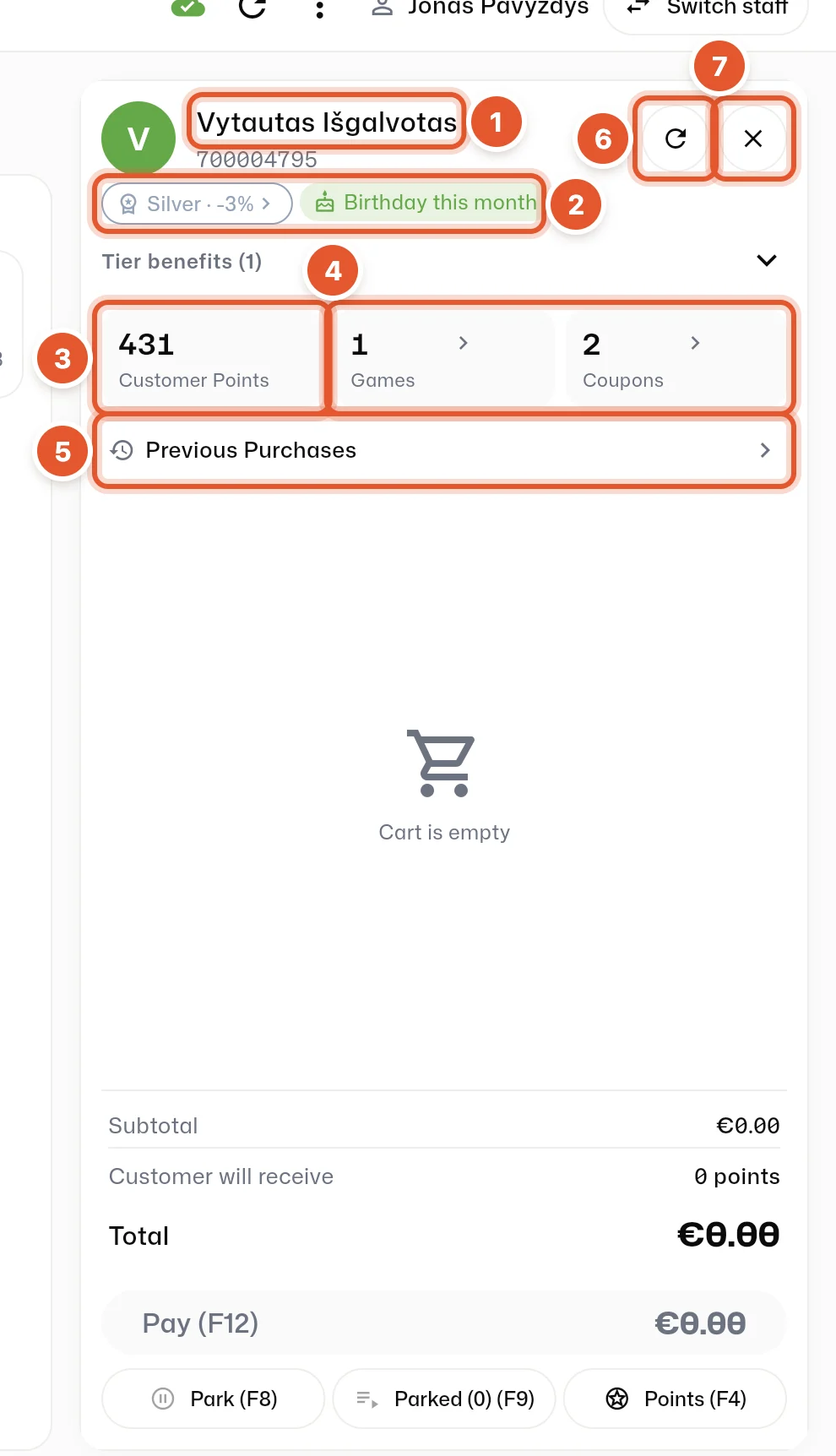
- 1. Customer — name and card number.
- 2. Tier — tap to see the tier discount and how far the next tier is. Next to it – the birthday badge.
- 3. Customer points — how many points they have now.
- 4. Games and Coupons — how many the customer has; tap to open.
- 5. Previous Purchases — history and refunds.
- 6. Refresh — reloads the customer's points and coupons.
- 7. Clear Client — the sale goes on without a customer.
Register a new customer
The window opens in two ways: with New, or when a phone search finds nobody.
Type the phone number. The till checks whether such a customer already exists.
Type the first and last name. This is optional: the customer can add it in the app.
Ask whether the customer wants news, and tick the boxes only if they agree.
If the customer gets a plastic card, type or scan its number. Press Register.
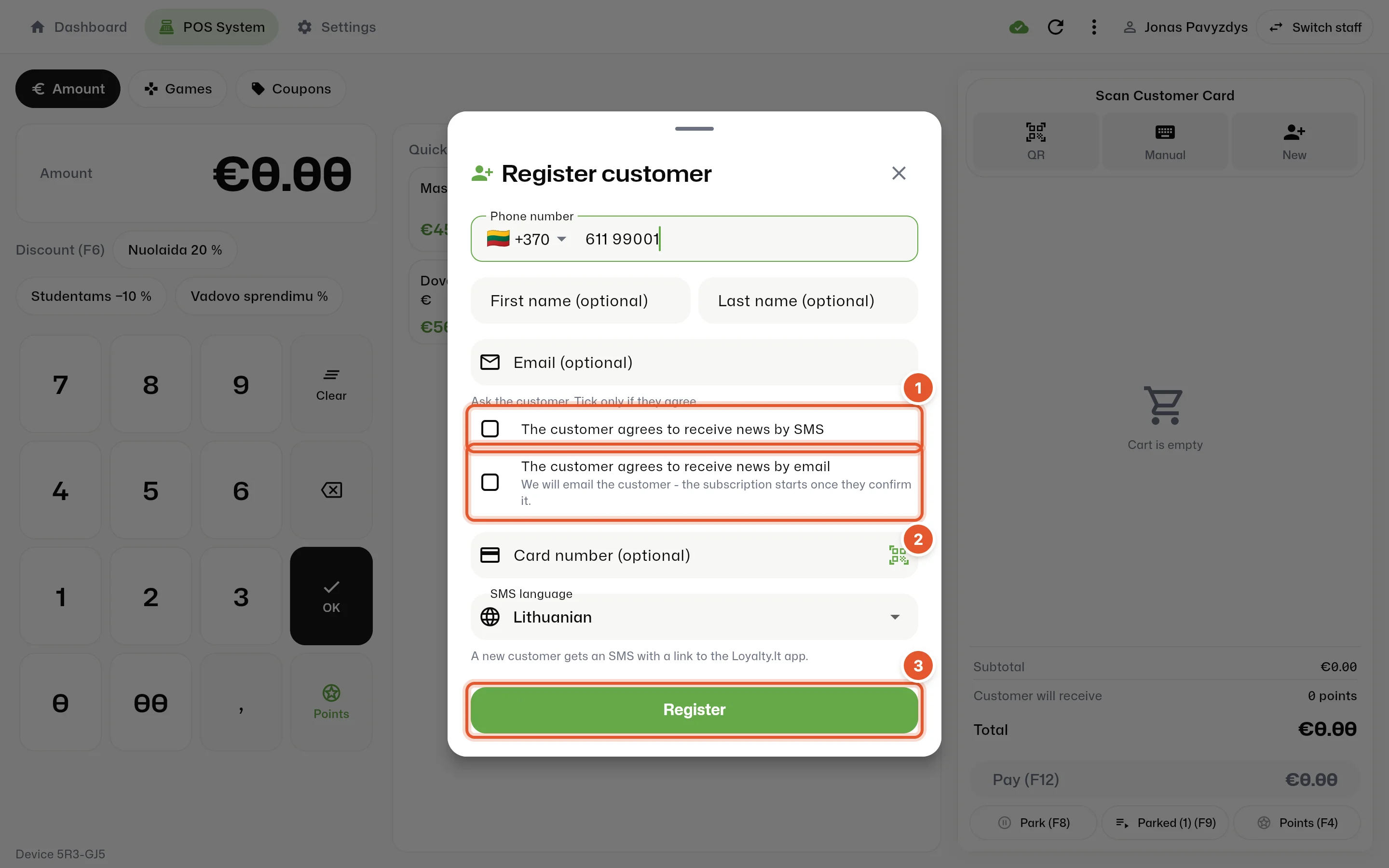
- 1. The customer agrees to receive news by SMS — tick only if the customer agrees.
- 2. The customer agrees to receive news by email — the customer gets an email and confirms in it.
- 3. Register — creates the customer and opens them at the till.
The consent is the customer's
The boxes are never ticked in advance. If the customer once opted out of your SMS, ticking the box does not change that.
A new customer gets an SMS with a link to the Loyalty.lt app right away.
Tell the customer
In the app they must sign in with the same phone number. Then all the points and coupons from the till are in their account.
What the till asks
| Which customer | What the till asks |
|---|---|
| Completely new | First name, last name, email and consents |
| Has a Loyalty.lt account, first time with you | Only consents: they entered their name themselves |
| Already your customer | Nothing – press Continue |
If something goes wrong
| What you see | What to do |
|---|---|
| “News by email needs an email address” | Type the email or untick the box. |
| “This card is not registered yet” | A new plastic card was scanned. Type the customer's phone and register it. |
| No name fields | The customer already has a Loyalty.lt account. Only they can change their name. |