

Amount and discount
How to enter an amount, apply a discount and put several amounts into one purchase.
This page is about the “Simple POS”: the cashier enters an amount, not products. Every signed-in staff member can use it.
Open POS SystemAmount.
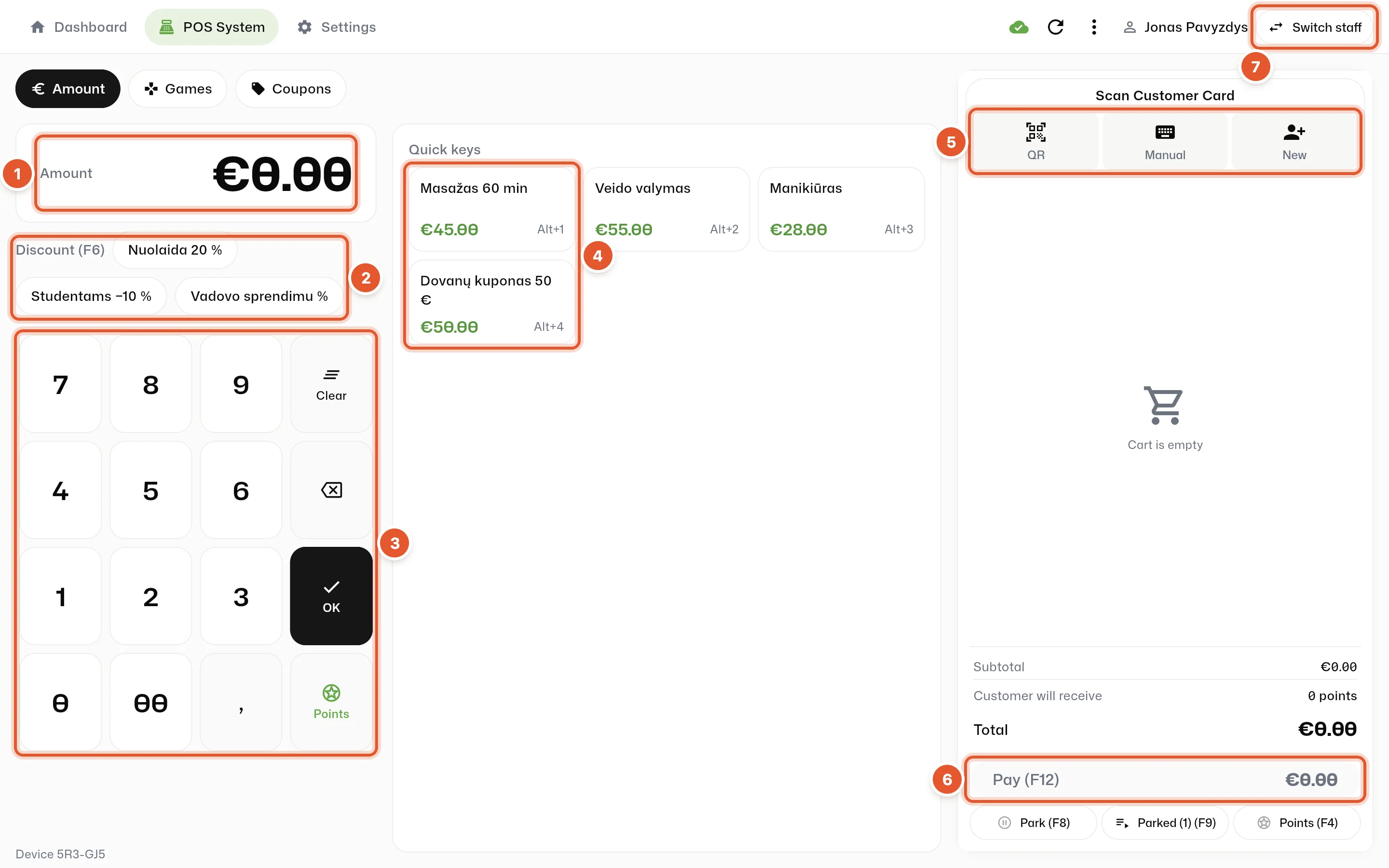
- 1. Amount — what you are entering now.
- 2. Discount (F6) — the discounts your manager allowed.
- 3. Keypad — to enter the amount with the mouse or a finger. Computer keys work too.
- 4. Quick keys — the most common amounts with one press.
- 5. Scan Customer Card — three ways to find or register a customer.
- 6. Pay (F12) — finishes the purchase.
- 7. Switch staff — another staff member signs in with their PIN.
Enter an amount
Type the amount with the buttons or the keyboard. Digits start from the cents: 1 0 0 0 0 is €100.00.
Press OK or Enter.
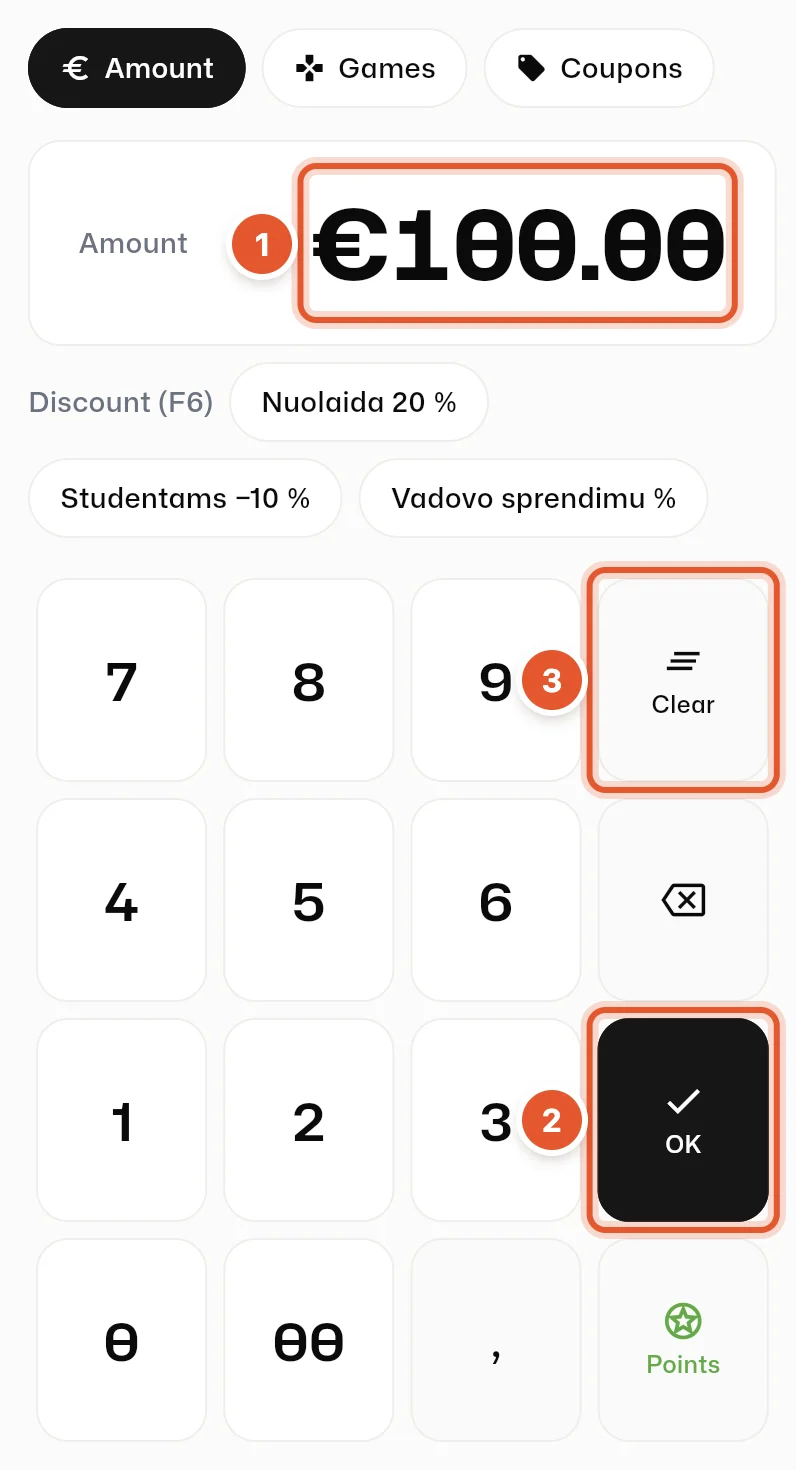
- 1. Amount — digits start from the cents: 10000 is €100.00.
- 2. OK — confirms the amount; on a computer – the Enter key.
- 3. Clear — deletes the amount entered; on a computer – Delete.
Faster
Quick keys enter frequent amounts. On a computer press Alt and a digit, such as Alt+1. Your manager sets the keys – see Shops.
Apply a discount
Apply the discount before pressing OK. Then you see what the customer pays before you choose the purchase part.
Enter the amount without the discount.
Press a discount button, such as 20% off. On a computer – F6.
Check the new amount and press OK.
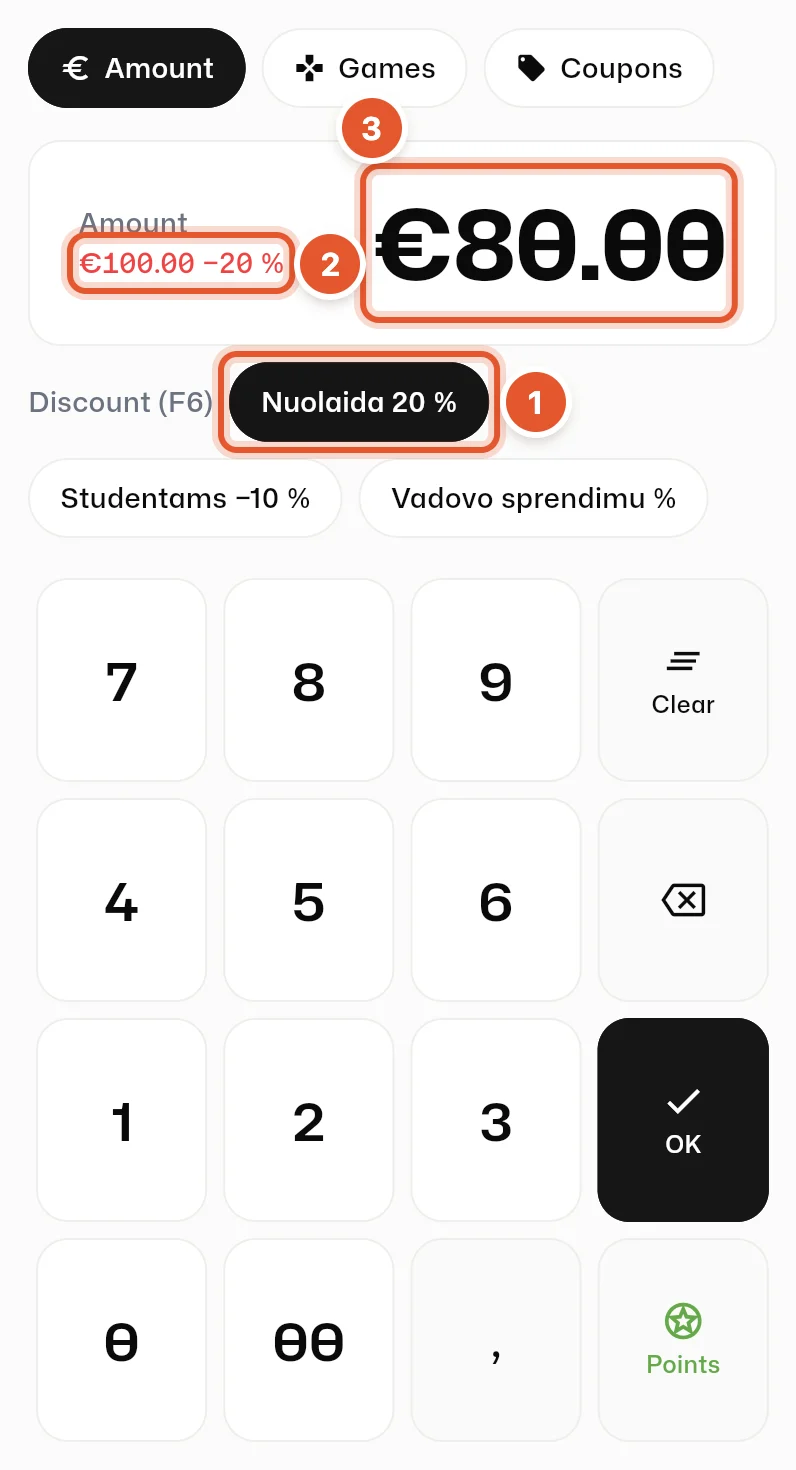
- 1. Nuolaida 20 % — a discount button, named by your manager. Black – the discount is on; press again to remove it.
- 2. €100.00 −20 % — the amount without the discount and the discount size.
- 3. €80.00 — what the customer pays.
Your manager sets up the discounts. If there are many, some are behind the “More” button. If there are none, you do not see the row.
When the till asks for something
Some discounts have conditions:
- Reason. Type what you checked and press Apply discount.
- Customer. First scan the card or find the customer.
- Manager's PIN. The manager chooses themselves and enters their PIN. A manager needs no approval.
- Size. Enter a percentage or euros. The till does not accept more than allowed.
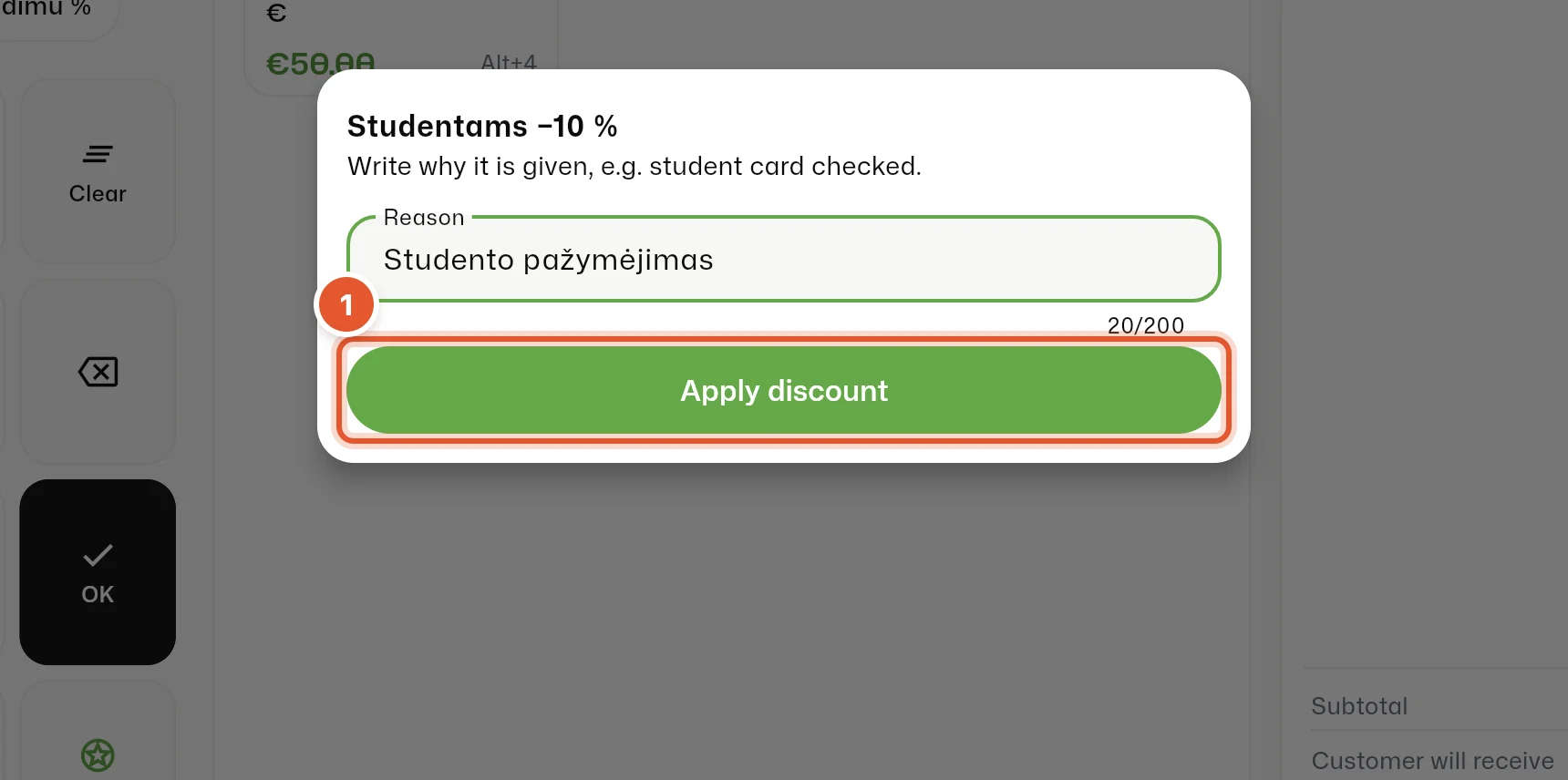
- 1. Apply discount — the discount applies only with a reason.
Choose what the amount is for
If your programme has purchase parts, after OK the till asks what the amount is for. Each part shows the amount with its discount and whether it earns points.
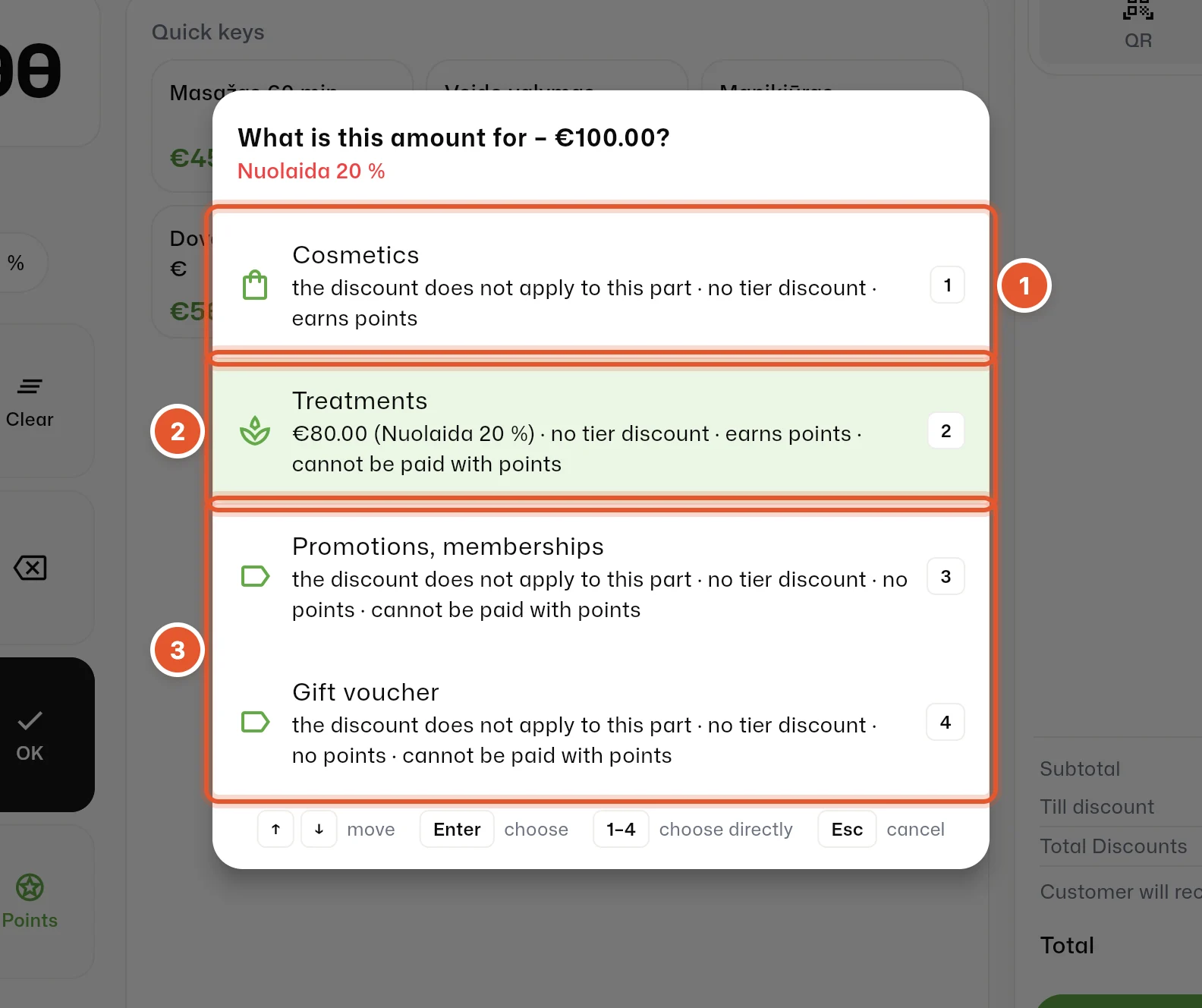
- 1. Cosmetics — the discount does not apply to this part, so the amount stays whole.
- 2. Treatments — chosen in advance; here you see the amount with the discount.
- 3. Promotions, memberships and Gift voucher — parts that earn no points.
Choose with the mouse, with ↑ ↓ and Enter, or with the part's number. Esc cancels.
Add several amounts
Enter another amount and press OK again. It goes into the basket below the first one. Each amount has its own part and its own discount.
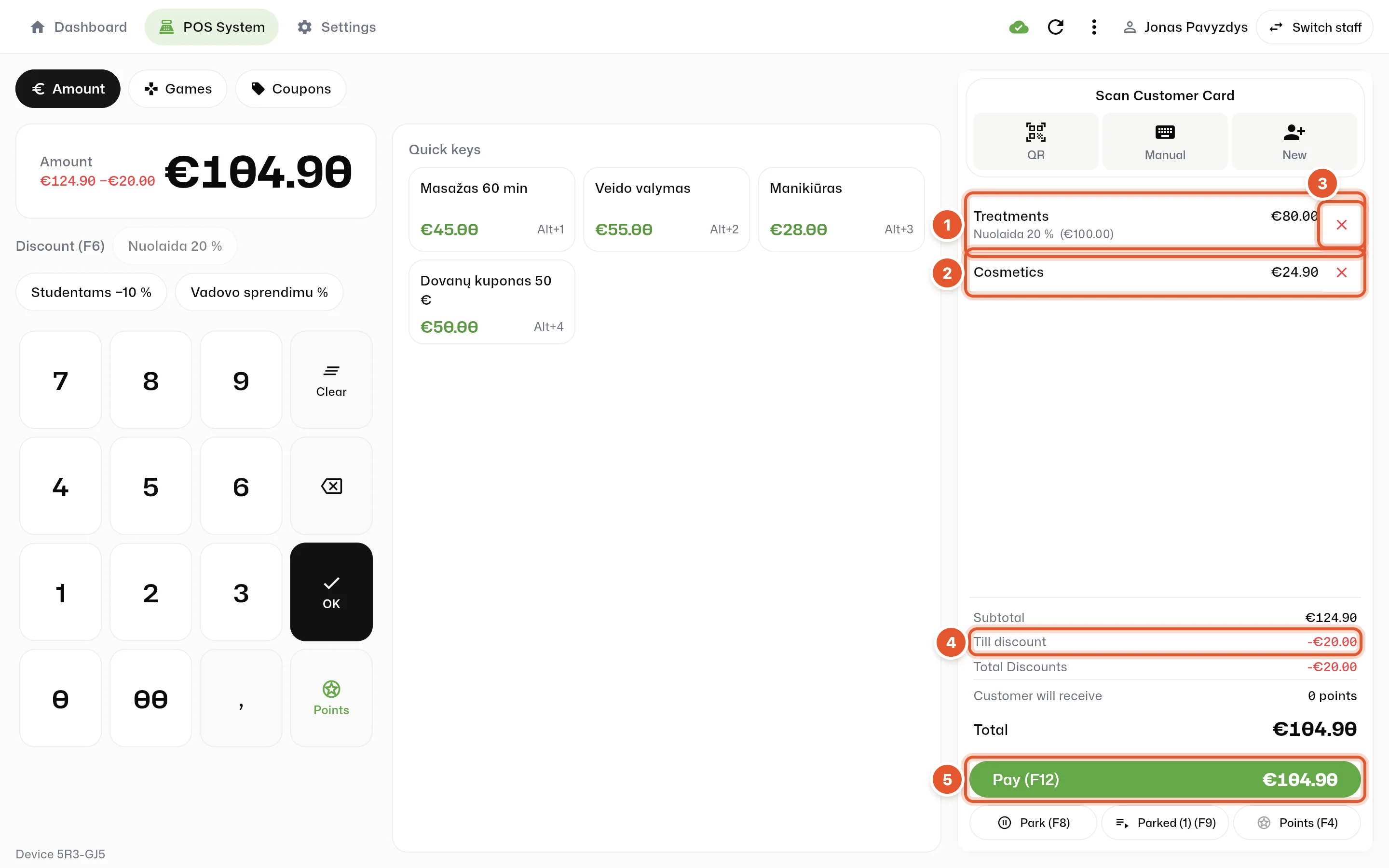
- 1. Treatments — the amount with the discount; under the name – the discount and the amount without it.
- 2. Cosmetics — a second amount in the same purchase.
- 3. × — removes the amount from the basket.
- 4. Till discount — how much discount applies to the whole purchase.
- 5. Pay (F12) — the final amount.
On a phone
Everything works the same way; the basket and the customer open with buttons at the bottom.
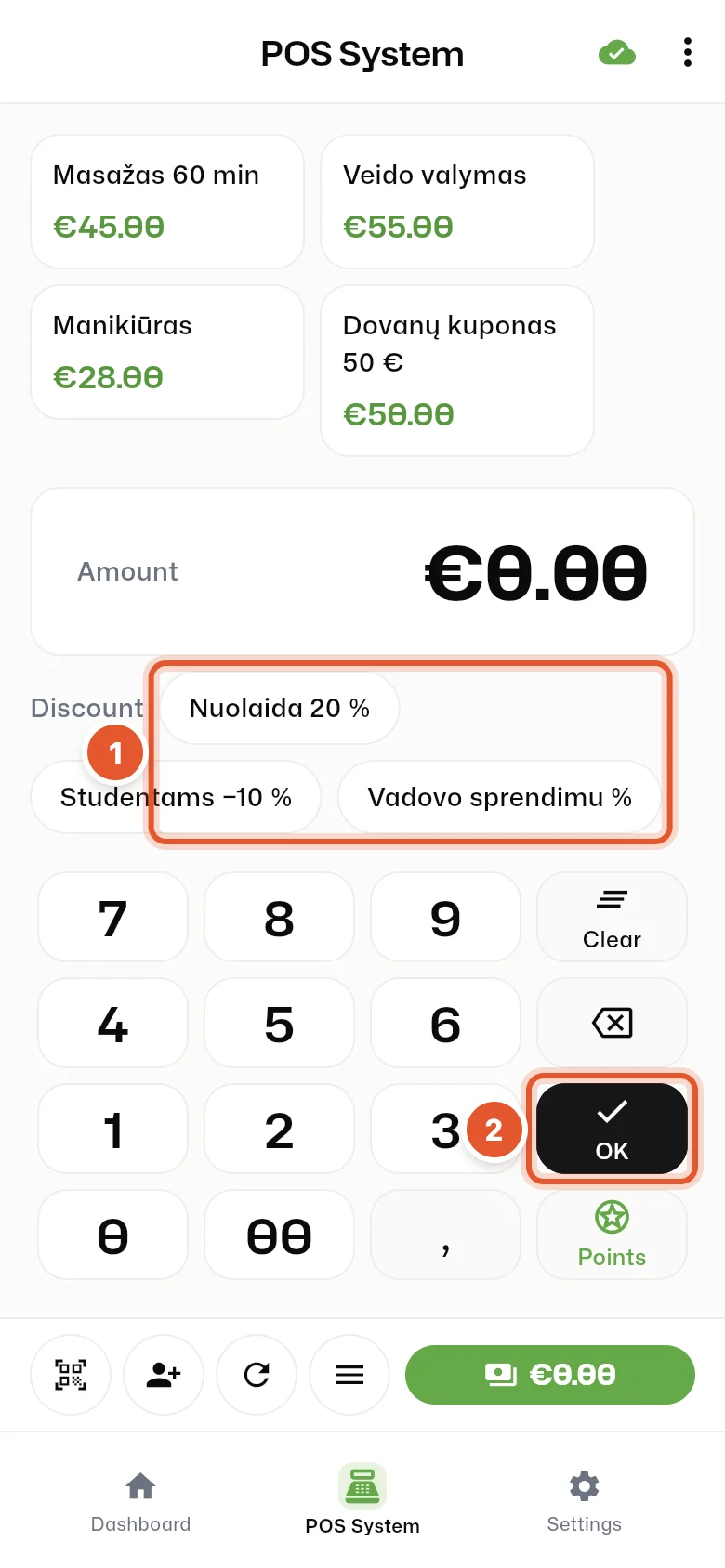
- 1. Discount — the same discount buttons.
- 2. OK — confirms the amount.
If something goes wrong
| What you see | What to do |
|---|---|
| The discount button is grey | The amount is too small, or a customer is needed first. Choose a customer or raise the amount. |
| “Pick the customer first” | Scan the card or find the customer, then press the discount. |
| “the discount does not apply to this part” | Your manager allowed this discount for other parts. The amount stays without a discount. |
| No manager with a PIN on this till | A manager must sign in here with their code once and create a PIN. |
| The discount is gone | It is valid at another time, or your manager turned it off. |
Related pages
- Shops – quick keys and the till lock